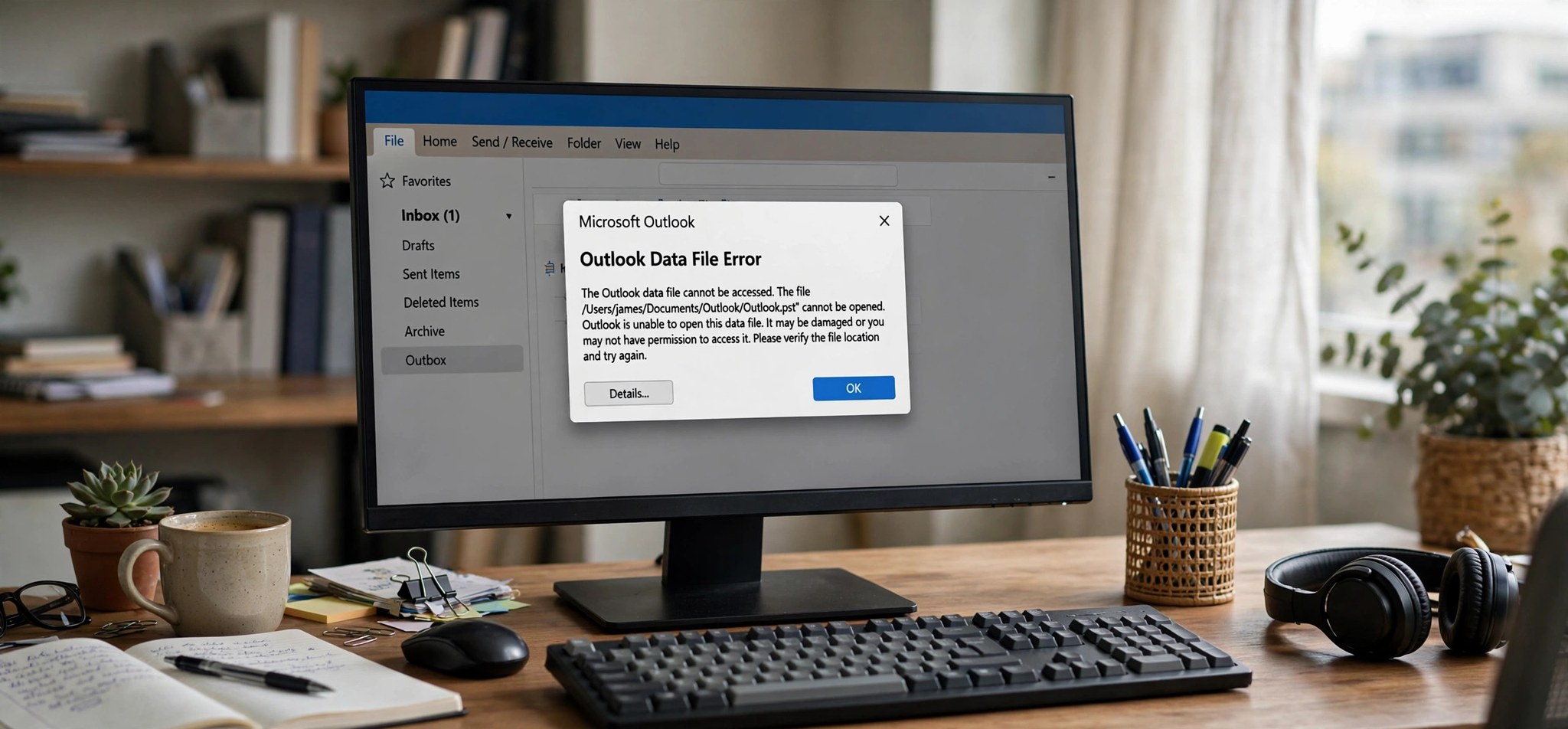
Outlook error 0x8004010F appears with the message “Outlook data file cannot be accessed” — Outlook knows your account exists, but it cannot open the local file where your mail is stored. Send/receive fails, folders may show as empty, and Outlook can feel half-broken even though your actual mailbox is fine. The root cause is almost always a moved, renamed, or corrupted OST or PST file, or a profile pointing at the wrong location. This guide walks you through fixing it properly. If Outlook will not even start, our Outlook stuck on loading profile guide covers that side of the problem.
What Causes the Outlook 0x8004010F Error?
Every Outlook account is tied to a local data file: an OST for Exchange, Microsoft 365, and IMAP accounts, or a PST for POP3 accounts. Outlook records exactly where that file lives. If the file gets moved, renamed, or deleted — by cleanup software, a OneDrive sync mishap, or manual tidying — Outlook looks for it at the old path, cannot find it, and throws 0x8004010F.
The other classic cause is corruption: the file exists but is damaged, often after a crash, power cut, or forced Outlook shutdown. A third scenario is a profile whose default delivery location points at the wrong file, which happens after importing accounts, migrating PCs, or restoring from backup. In all three cases, the fix is the same idea: give Outlook a valid, healthy data file at the location it expects.
How to Fix the Outlook 0x8004010F Error
Fix 1: Locate Your Data File and Check the Path
Before rebuilding anything, find out whether the file still exists and where Outlook thinks it should be. This takes two minutes and often reveals a simple path mismatch.
- In Outlook, go to File > Account Settings > Account Settings and open the Data Files tab.
- Select the data file for your account and note the Location column — this is where Outlook expects the file.
- Open File Explorer, paste that path into the address bar, and check whether the file is actually there.
- If the file exists elsewhere (search for *.pst or *.ost in File Explorer), you can move it back to the expected location, or use Settings on the Data Files tab to point Outlook at its real location.
Fix 2: Recreate Your OST File
For Exchange, Microsoft 365, and IMAP accounts, the safest fix is to let Outlook rebuild the OST from scratch. The OST is only a local cache, so deleting it loses nothing — the server holds the real mailbox.
- Close Outlook completely and end any OUTLOOK.EXE processes in Task Manager.
- Press Win + R, type %localappdata%\Microsoft\Outlook, and press Enter.
- Rename your account’s .ost file to .old (safer than deleting, in case you need it back).
- Start Outlook. It will rebuild the OST from the server — large mailboxes can take a while, so let it finish syncing before judging the result.
- Run a send/receive (F9) to confirm the 0x8004010F error is gone.
Fix 3: Repair Your PST File with scanpst.exe
POP3 users cannot simply delete their file, because the PST may be the only copy of their mail. Instead, repair it with Microsoft’s Inbox Repair Tool.
- Close Outlook fully and confirm no OUTLOOK.EXE process remains in Task Manager.
- Open C:\Program Files\Microsoft Office\root\Office16 in File Explorer (use Office15 for Outlook 2013; 32-bit Office is under C:\Program Files (x86)\) and double-click SCANPST.EXE.
- Click Browse, select your .pst file, and click Start.
- If errors are found, click Repair — the tool makes an automatic backup first.
- Reopen Outlook and test send/receive. Run the tool a second time if it reports remaining errors.
Fix 4: Create a New Outlook Profile
When the profile’s internal pointers are tangled — wrong delivery location, orphaned file references — the cleanest solution is a brand-new profile. This is Microsoft’s recommended fix for persistent 0x8004010F.
- Close Outlook and end any OUTLOOK.EXE processes in Task Manager.
- Open Control Panel > Mail (Microsoft Outlook) > Show Profiles and click Add.
- Name the new profile, add your email account, and finish the wizard — Outlook will create a fresh data file automatically.
- Select Always use this profile, choose the new profile, and click OK.
- Start Outlook and verify send/receive works. For POP3, import or reconnect your old PST via File > Open & Export > Open Outlook Data File if needed.
Fix 5: Set the Correct Default Delivery Location
Sometimes the data file is perfectly healthy but is not set as the delivery target for the account. Pointing delivery at the right file clears the error without rebuilding anything.
- Go to File > Account Settings > Account Settings > Data Files tab.
- Select the correct data file for your account and click Set as Default.
- Switch to the Email tab, select your account, and click Change Folder to confirm mail is delivered to the right file’s Inbox.
- Click Close, restart Outlook, and run a send/receive.
Fix 6: Move the Data File Out of Synced or Network Folders
Outlook data files do not tolerate being stored on network drives, in OneDrive-synced folders, or on removable media. If your PST or OST lives in one of those places, move it local.
- Close Outlook completely.
- Move the .pst or .ost file to a local folder such as Documents\Outlook Files (PST) or leave OSTs in %localappdata%\Microsoft\Outlook.
- Open Control Panel > Mail (Microsoft Outlook) > Show Profiles, select your profile, click Properties > Data Files, and use Settings to point at the new location if Outlook complains the file is missing.
- Pause OneDrive sync for the folder, or exclude Outlook data files from syncing, so it does not happen again.
Microsoft documents the repair tool used above here: Repair Outlook Data Files (.pst and .ost).
How to Prevent This Error
- Never move, rename, or delete OST/PST files manually — manage them through Outlook’s Data Files settings.
- Keep data files on your local drive only, never on network shares or in cloud-synced folders.
- Always close Outlook before shutting down or restarting your PC.
- Archive old mail regularly to keep PST files well under their size limits.
- Exclude Outlook data files from third-party “PC cleaner” tools that may move or “optimize” them.
FAQs
What does Outlook error 0x8004010F mean?
It means “Outlook data file cannot be accessed.” Outlook is trying to open the OST or PST file tied to your account and failing — because the file was moved, renamed, deleted, or corrupted, or because the profile points at the wrong location.
Will I lose emails if I recreate my OST file?
No — for Exchange, Microsoft 365, and IMAP accounts, the OST is just a cached copy. Outlook downloads everything again from the server. Only POP3 accounts store mail exclusively in the local PST, which is why those should be repaired, not deleted.
Can I just point Outlook at the moved PST file?
Yes. If you know where the file went, open File > Account Settings > Data Files, select it, and use Settings to reconnect it — or move the file back to the path Outlook expects. Either approach resolves the error.
Why does this error keep coming back?
Recurring 0x8004010F usually means something keeps touching the file: OneDrive syncing it, a cleaner tool moving it, or a failing hard drive corrupting it. Move the file local, exclude it from sync/cleaner tools, and check your drive health.
Does 0x8004010F affect all my email accounts or just one?
Just the account tied to the inaccessible data file. Other accounts in the same profile keep working, which is actually a useful diagnostic clue — it confirms the problem is the file or its path, not Outlook itself.
Conclusion
Outlook error 0x8004010F looks alarming, but it is really Outlook telling you it cannot find or open its data file. Verify the file path, recreate the OST or repair the PST, and rebuild the profile if the pointers are tangled. Your mailbox itself is almost certainly intact on the server — you just need to give Outlook a valid route back to it.