
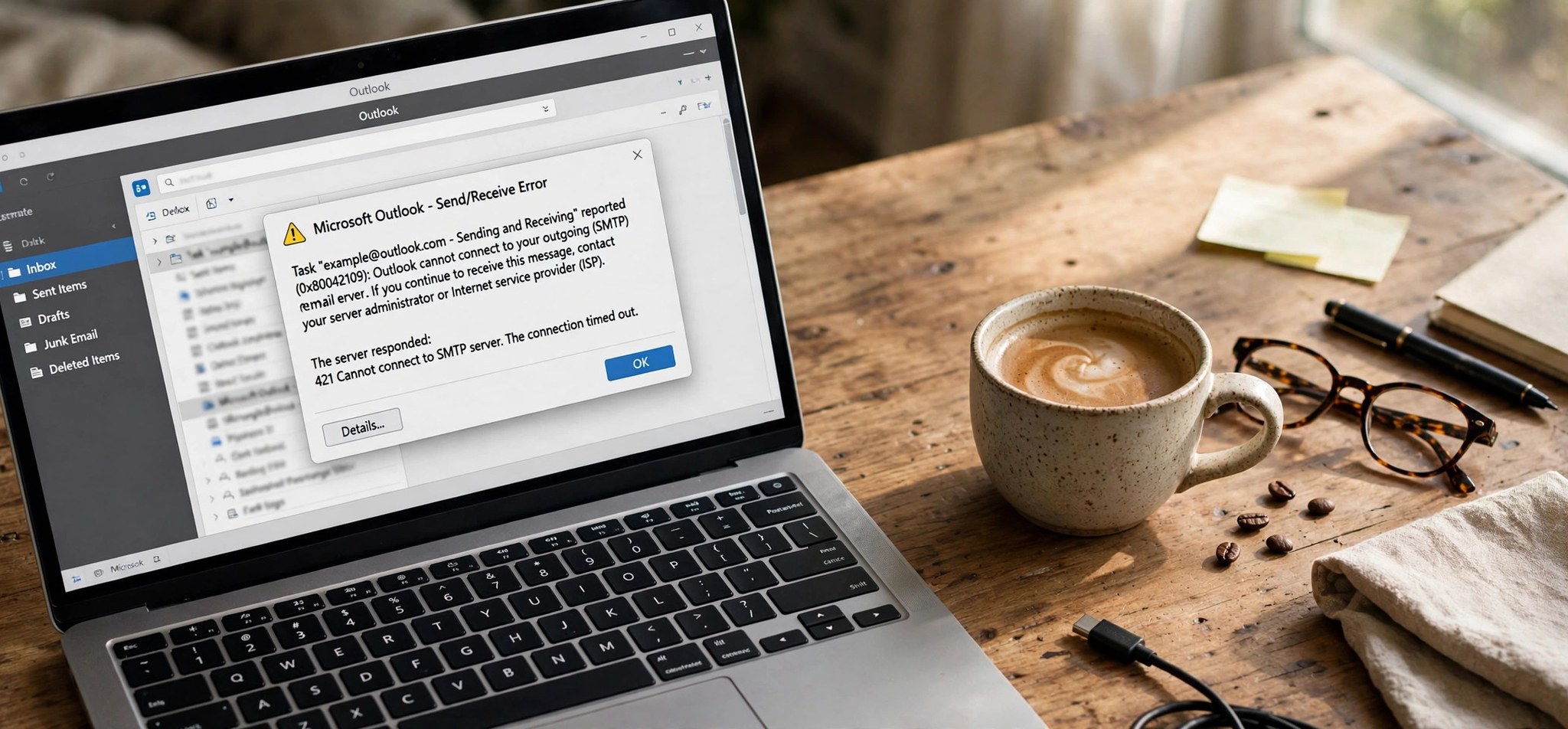
Outlook error 0x80042109 means Outlook cannot reach your outgoing (SMTP) mail server — your emails sit in the Outbox while incoming mail keeps arriving normally. The message typically reads “Task reported error (0x80042109): Outlook cannot connect to your outgoing (SMTP) email server.” Because receiving works fine, the problem is isolated to the sending side: wrong SMTP settings, a blocked port, or security software interfering with outgoing mail. These six SMTP-focused fixes resolve it in the vast majority of cases. For the mirror-image problem where nothing connects at all, see our Outlook error 0x800CCC0E fix guide.
What Causes the Outlook 0x80042109 Error?
Sending mail fails when Outlook cannot establish an SMTP session with your provider’s server. The most frequent cause is simply the wrong SMTP port or encryption combination — for instance, port 25 with no encryption on a provider that now requires port 587 with STARTTLS. Many internet providers also block port 25 outright to fight spam, which silently kills outgoing mail for anyone still configured to use it.
The second major cause is antivirus email scanning. These features proxy your outgoing mail to scan it, and when the proxy breaks, nothing gets sent. Firewalls blocking Outlook’s outbound SMTP traffic, corrupted account settings or profiles, and wrong SMTP authentication settings (such as not logging in to the outgoing server) complete the usual list of suspects.
How to Fix the Outlook 0x80042109 Error
Fix 1: Correct Your SMTP Port and Encryption Settings
This single fix resolves most 0x80042109 cases. The port and encryption must match exactly what your provider requires — getting one right and the other wrong still fails.
- In Outlook, go to File > Account Settings > Account Settings, select your account, and click Change.
- Click More Settings, then open the Advanced tab.
- Set the Outgoing server (SMTP) port to 587 with STARTTLS/TLS encryption, or 465 with SSL encryption — whichever your provider documents. Avoid port 25, which many ISPs block.
- On the Outgoing Server tab, check My outgoing server (SMTP) requires authentication and select Use same settings as my incoming mail server.
- Click OK > Next > Finish, then press F9 to send/receive and confirm the Outbox clears.
Fix 2: Turn Off Antivirus Email Scanning
Outgoing-mail scanning is the most common software cause of 0x80042109. The antivirus inserts itself between Outlook and the SMTP server, and when that interception fails, sending dies while receiving (which uses a different path) keeps working.
- Open your antivirus suite and locate its email shield, mail protection, or outgoing mail scanning option.
- Disable the outgoing/email scanning feature specifically — keep the rest of your protection active.
- Restart Outlook and try sending a test email to yourself.
- If sending works, add an exception for Outlook or your SMTP server in the antivirus, or leave outgoing scanning off — your provider already scans mail server-side.
Fix 3: Allow Outlook Through Your Firewall
Firewalls occasionally block Outlook’s SMTP traffic after a firewall or Windows update resets the rules. The symptom is identical: receiving works, sending does not.
- Open Settings > Privacy & security > Windows Security > Firewall & network protection.
- Click Allow an app through firewall, then Change settings.
- Ensure Microsoft Outlook is checked for both Private and Public networks.
- If you use a third-party firewall, open it and verify Outlook has outbound access on SMTP ports 587 and 465.
Fix 4: Repair the Email Account
Outlook’s built-in repair re-detects the correct server settings automatically and fixes configuration drift that causes 0x80042109.
- Go to File > Account Settings > Account Settings.
- Select the affected account and click Repair.
- Follow the wizard, re-enter your password when prompted, and let it run its connection tests.
- Restart Outlook and send a test message to verify.
Fix 5: Create a New Outlook Profile
When account settings look right but sending still fails, the profile itself may be damaged. A new profile gives Outlook a clean configuration to work from.
- Close Outlook fully and end any OUTLOOK.EXE processes in Task Manager.
- Open Control Panel > Mail (Microsoft Outlook) > Show Profiles.
- Click Add, name the profile, and add your email account through the wizard.
- Select Always use this profile, pick the new profile, and click OK.
- Open Outlook and test sending. If it works, the old profile was corrupt.
Fix 6: Check With Your ISP and Provider
Sometimes the blockage is upstream: your internet provider blocking SMTP ports, or your email provider throttling your account after suspicious activity.
- Confirm you can browse the web normally to rule out a general connection problem.
- If you are on a restrictive network (office, hotel, or public Wi-Fi), try sending over a different connection, such as mobile hotspot, to see if the network is blocking SMTP.
- Contact your ISP and ask specifically whether outbound port 25 (and 587/465) is blocked on your connection.
- Sign in to your provider’s webmail and send a test message there — if webmail sending also fails, the issue is with your account, and your provider’s support is the next step.
Microsoft’s guide to repairing the data files involved in stubborn Outlook errors: Repair Outlook Data Files (.pst and .ost).
How to Prevent This Error
- Use port 587 with STARTTLS (or 465 with SSL) for SMTP — stop using port 25 wherever possible.
- Keep a note of your provider’s official server settings so you can re-verify them after any provider announcement.
- Configure antivirus exceptions for Outlook instead of letting email scanning intercept traffic.
- Update Outlook and Windows regularly so you always have the latest supported encryption methods.
- If you travel, remember that hotel and office networks often block SMTP — a mobile hotspot is a quick workaround.
FAQs
What does Outlook error 0x80042109 mean?
It means Outlook timed out while trying to connect to your outgoing (SMTP) mail server. Receiving still works because incoming mail uses different servers and ports — the failure is specific to the sending path.
Why can I receive emails but not send them?
Because sending and receiving use completely separate server connections. Your IMAP/POP3 settings for incoming mail can be perfect while the SMTP settings for outgoing mail are wrong or blocked — which is exactly the situation 0x80042109 describes.
Should I use port 25, 465, or 587 for SMTP?
Use 587 with STARTTLS/TLS or 465 with SSL, per your provider’s documentation. Port 25 is the old unencrypted default and is blocked by many ISPs to prevent spam, so it should be your last resort, not your first choice.
Can my antivirus block only outgoing mail?
Yes — and it commonly does. Outgoing mail scanning proxies your SMTP connection, so when it malfunctions, sending breaks while receiving continues normally. Disabling just the email/outgoing scanning feature is the standard test.
Will a new profile delete my emails?
No. Your mail stays on the server (for IMAP/Exchange/Microsoft 365) or in your existing PST file (for POP3). The new profile simply reconnects to the same mailbox with a fresh, uncorrupted configuration.
Conclusion
Outlook error 0x80042109 is a sending-side problem with sending-side solutions: correct SMTP port and encryption, SMTP authentication enabled, and no antivirus or firewall standing in the way. Fix 1 alone clears it for most people, and the rest of the list covers the stubborn cases. Once the Outbox starts clearing, note down the working settings so you can restore them in seconds if it ever happens again.


