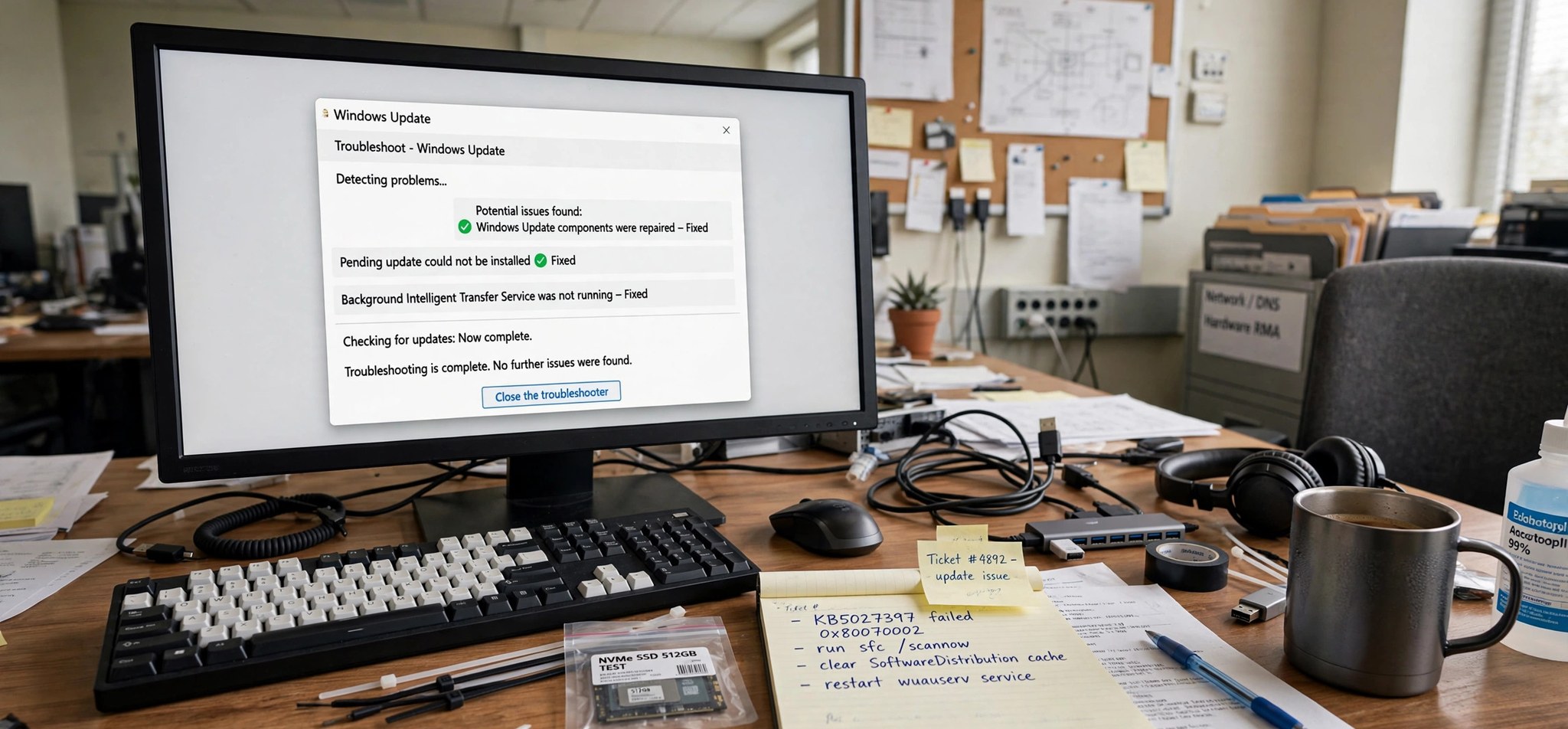
The 0x80070002 Windows Update error appears when Windows tries to download or install an update and the process fails partway through. You will usually see it under Settings > Windows Update next to a message like “There were some problems installing updates.” Despite the cryptic code, this is one of the most common Windows errors, and it almost always traces back to a corrupted update cache or a damaged system file. The good news: you can fix it yourself in about 15 minutes without reinstalling anything. Below are five proven fixes, ordered from quickest to most thorough, so start at the top and work down until updates flow again. If you run into other cryptic Windows codes along the way, our printer error 0x0000007e fix guide covers another common one.
What Causes the 0x80070002 Windows Update Error?
In the large majority of cases, the culprit is a damaged SoftwareDistribution folder — the cache where Windows stores downloaded update files before installing them. If a download gets interrupted by a power cut, a forced shutdown, or flaky Wi-Fi, the half-written files left behind confuse the updater. The code 0x80070002 itself translates to “the system cannot find the file specified,” which is exactly what happens: Windows Update reaches for a file it expects to be in the cache and finds it missing or unreadable.
Less often, the error comes from corrupted Windows system files that the update engine depends on, or from a system clock that is badly out of sync — update servers can reject connections from a PC whose date and time are far off. Critically low disk space is another classic trigger, since updates need room to unpack. Finally, overzealous third-party antivirus or firewall software can block the update service’s access to its own cache, producing the same error code.
How to Fix the 0x80070002 Windows Update Error
Fix 1: Run the Windows Update Troubleshooter
Windows ships with an automated troubleshooter that detects and repairs common update problems, including a damaged update cache. It takes about two minutes and fixes the issue outright surprisingly often.
- Press Win + I to open Settings, then go to System > Troubleshoot > Other troubleshooters.
- Find Windows Update in the list and click Run.
- Follow the on-screen prompts and let the tool apply any fixes it recommends.
- Restart your PC, then go to Settings > Windows Update and click Check for updates.
Fix 2: Reset the SoftwareDistribution Folder
If the troubleshooter did not help, manually clearing the corrupted update cache is the single most reliable fix for 0x80070002. You stop the update services, rename the cache folder so Windows builds a fresh one, and restart the services. None of your personal files are touched.
- Click Start, type cmd, right-click Command Prompt, and choose Run as administrator. Click Yes on the User Account Control prompt.
- Stop the update services by running these commands one at a time: net stop wuauserv and then net stop bits.
- Rename the cache folder with this command: ren C:\Windows\SoftwareDistribution SoftwareDistribution.old
- Restart the services: net start wuauserv and then net start bits.
- Close Command Prompt, restart your computer, and check for updates again. Windows will recreate a clean SoftwareDistribution folder automatically.
Fix 3: Run SFC and DISM Scans
When system files that the update engine relies on are damaged, the System File Checker (SFC) and Deployment Image Servicing and Management (DISM) tools can repair them. Run DISM first, then SFC.
- Open an administrator Command Prompt as described above.
- Type DISM /Online /Cleanup-Image /RestoreHealth and press Enter. Wait for it to reach 100 percent; this can take 10 to 20 minutes.
- Next, type sfc /scannow and press Enter. Do not close the window until the scan completes.
- If either tool reports that it repaired files, restart your PC and try Windows Update again.
Fix 4: Check Your Date, Time, and Time Zone
A clock that is days or months off can cause update servers to reject your PC’s requests, which surfaces as 0x80070002. This is a quick check that costs nothing.
- Open Settings and go to Time & language > Date & time.
- Turn on Set time automatically and Set time zone automatically.
- Click Sync now under Additional settings to force an immediate sync.
- Restart your PC and run Check for updates once more.
Fix 5: Free Up Disk Space and Retry
Feature updates need a comfortable amount of free space to download and unpack. If your system drive is nearly full, updates fail with codes like 0x80070002. Aim for at least 15 to 20 GB of free space on the C: drive.
- Open Settings > System > Storage to see what is eating your space.
- Click Temporary files, tick the categories you do not need (previous Windows installations and delivery optimization files are usually large), and click Remove files.
- Turn on Storage Sense on the same page so Windows cleans up automatically in the future.
- Alternatively, press Win + R, type cleanmgr, press Enter, select your system drive, and remove unneeded files including system files.
- Restart and check for updates again.
Microsoft’s official walkthrough covers these same steps in more detail: Troubleshoot problems updating Windows.
How to Prevent This Error
- Never force-shut-down your PC while updates are downloading or installing — let them finish.
- Keep at least 15 to 20 GB free on your system drive at all times.
- Restart your computer at least once a week so pending updates can complete cleanly.
- Keep your third-party antivirus updated, and add Windows Update to its exceptions if it has blocked updates before.
- Avoid pausing updates for months at a time; smaller, frequent updates fail less often than giant catch-up batches.
- Use a stable connection for large feature updates — avoid metered or frequently dropping Wi-Fi during the download.
FAQs
What does error code 0x80070002 actually mean?
It is a standard Windows system code meaning “the system cannot find the file specified.” In the Windows Update context, it means the updater expected a particular file in its download cache and found it missing or corrupted, so the installation could not proceed.
Will resetting the SoftwareDistribution folder delete my personal files?
No. The SoftwareDistribution folder only holds Windows Update’s temporary download cache. Renaming it simply forces Windows to build a fresh, clean cache. Your documents, apps, and settings are completely unaffected.
How long do the SFC and DISM scans take?
DISM typically takes 10 to 20 minutes depending on your PC and internet speed, since it may pull clean files from Windows Update. SFC usually takes 5 to 15 minutes. Both must be allowed to reach 100 percent — do not close the window early.
Can my antivirus really cause 0x80070002?
Yes. Some third-party security suites aggressively sandbox or quarantine the files Windows Update downloads, which corrupts the cache. If the error keeps returning, try temporarily disabling your antivirus’s real-time protection, run the update, then re-enable it.
Do I need to reinstall Windows to fix this?
Almost never. The five fixes above resolve 0x80070002 in the vast majority of cases. A reinstall is only worth considering if SFC and DISM both report unfixable corruption and updates still fail after a cache reset.
Conclusion
The 0x80070002 Windows Update error looks intimidating, but it is one of the most fixable problems in Windows. Start with the built-in troubleshooter, reset the SoftwareDistribution cache if needed, and repair system files with DISM and SFC — that sequence clears the error for nearly everyone. Keep some free disk space and let updates finish uninterrupted, and you should rarely see this code again.