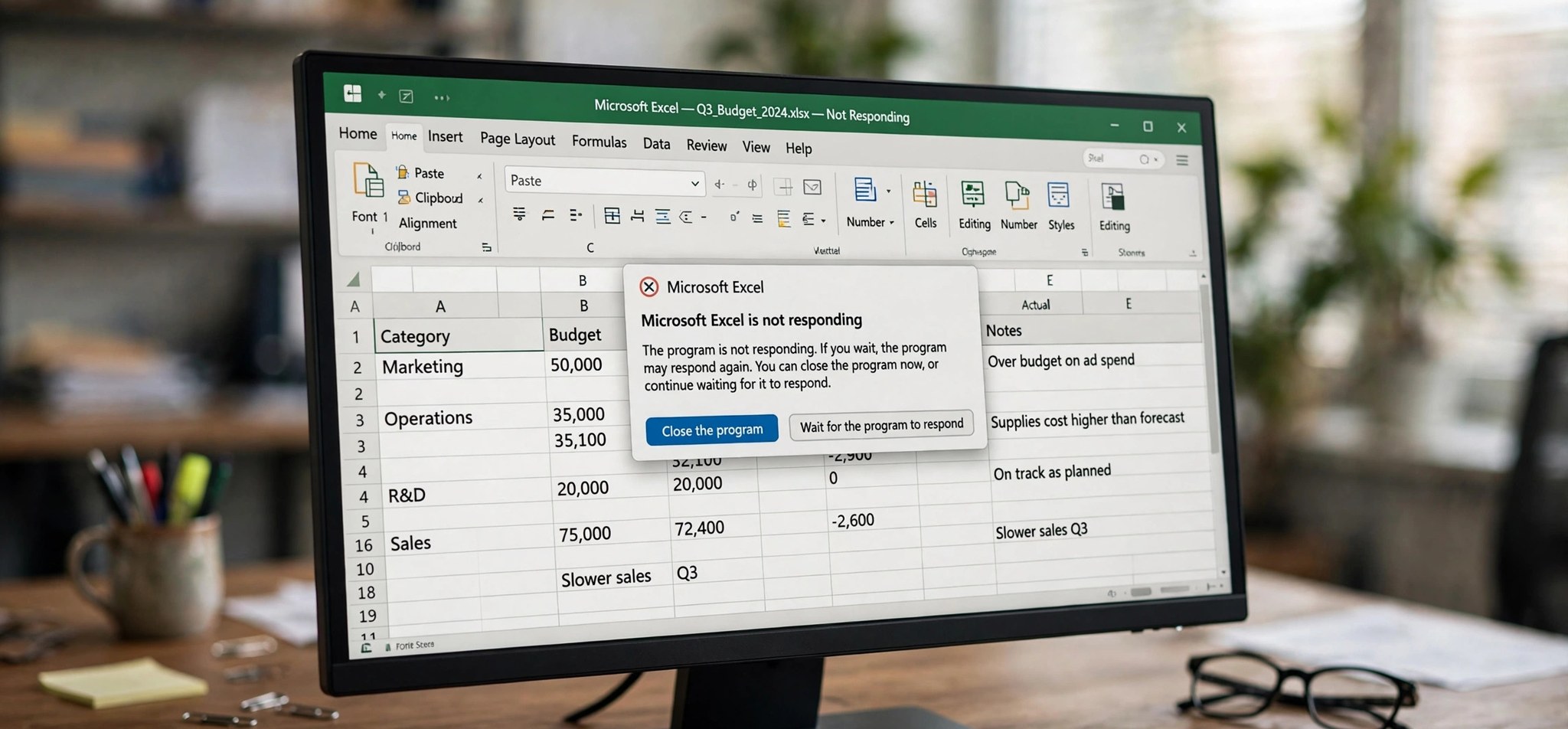
The full message reads “Microsoft Excel is waiting for another application to complete an OLE action” — and then Excel freezes, sometimes for minutes, sometimes forever. You cannot click anything, you cannot save, and ending the task risks losing unsaved work. This Excel waiting for another application to complete an OLE action error happens when Excel asks another program (or one of its own components) to do something and never gets a reply. It is fixable, and you rarely need to reinstall anything. Below are five proven fixes, starting with the one that resolves it most often. The steps apply to Excel for Microsoft 365, Excel 2021, Excel 2019, and Excel 2016 on Windows 10 and 11. If Excel throws content warnings instead of hanging, our “we found a problem with some content” fix guide covers that error.
What Causes the Excel OLE Action Error?
OLE (Object Linking and Embedding) and its older cousin DDE (Dynamic Data Exchange) are the mechanisms Excel uses to talk to other applications — pulling live data from another program, embedding objects, or handing off tasks to add-ins. When the other side is slow, crashed, or stuck waiting itself, Excel sits there waiting indefinitely and shows this message.
In practice, the most common trigger is Excel’s “Ignore other applications that use Dynamic Data Exchange (DDE)” setting being enabled, which breaks normal inter-application communication. Close behind are misbehaving add-ins that hook into Excel and never return control, an Excel process stuck on a previous crashed session, corrupted Office components, and workbooks with heavy external data connections that take forever to refresh.
How to Fix the Excel OLE Action Error
Fix 1: Turn Off “Ignore Other Applications That Use DDE”
This single checkbox is the most common cause of the OLE waiting error. Unchecking it restores normal communication between Excel and other applications.
- In Excel, go to File > Options.
- Select Advanced in the left pane.
- Scroll down to the General section near the bottom.
- Uncheck Ignore other applications that use Dynamic Data Exchange (DDE).
- Click OK, close Excel completely, and reopen your workbook.
Fix 2: Disable Problematic Add-ins
Add-ins run inside Excel’s process, so a hung add-in looks exactly like Excel waiting on another application. Disabling them is the fastest way to test this theory.
- Go to File > Options > Add-ins.
- Set the Manage dropdown to Excel Add-ins, click Go, and uncheck all entries. Click OK.
- Change the dropdown to COM Add-ins, click Go, and uncheck those as well.
- Restart Excel normally and test. If the error is gone, re-enable add-ins one at a time to find the offender, then update or remove it.
Fix 3: End Stuck Excel and Office Processes
Sometimes the “other application” Excel is waiting for is a zombie Excel process left over from a previous crash, holding locks on files or memory. Clearing it out gives you a clean slate.
- Save any work you can, then press Ctrl + Shift + Esc to open Task Manager.
- On the Processes tab, select every Microsoft Excel entry and click End task.
- Also end any Office-related background processes that look stuck, such as Microsoft Office Click-to-Run only if it is unresponsive — leave it alone otherwise.
- Restart Excel and reopen your workbook. If it was a stuck process, the error will not return.
Fix 4: Disable Hardware Graphics Acceleration
On some systems, Excel’s hardware graphics acceleration conflicts with display drivers and manifests as hangs during rendering-heavy operations, which Excel reports as waiting on another application.
- Go to File > Options > Advanced.
- Scroll to the Display section.
- Check Disable hardware graphics acceleration.
- Click OK and restart Excel to test.
Fix 5: Repair the Office Installation
If the error happens across many workbooks and none of the above helped, Excel’s own program files may be damaged. A repair fixes corrupted components without touching your files or settings.
- Close all Office applications and end leftover Excel processes in Task Manager.
- Open Settings > Apps > Installed apps.
- Find Microsoft 365 or Microsoft Office, click the three dots, and choose Modify.
- Select Quick Repair and click Repair. If the problem persists, repeat with Online Repair, which reinstalls Office components from Microsoft’s servers.
- Restart your PC, update Office via File > Account > Update Options > Update Now, and test again.
Microsoft’s official guidance for damaged workbooks, which covers related Excel errors: Repairing a corrupted workbook.
How to Prevent This Error
- Keep the DDE-ignore setting off unless you have a specific reason to enable it.
- Install add-ins only from trusted sources, and remove any you no longer use.
- Close Excel properly instead of force-ending it, so no zombie processes linger.
- Keep Office and your graphics drivers updated — both sides of the rendering pipeline matter.
- Avoid workbooks with dozens of live external data connections refreshing on open; set heavy queries to refresh manually.
- Restart your PC weekly to clear out stuck background processes before they cause hangs.
FAQs
What does “waiting for another application to complete an OLE action” mean?
It means Excel sent a request to another program or component — via OLE or DDE — and is still waiting for the reply. Excel cannot continue until it gets an answer, so the whole application appears frozen. The “other application” is often an add-in, a stuck Excel process, or a broken DDE setting rather than a truly separate program.
Is it safe to end the Excel task when this happens?
It is a last resort: you will lose unsaved changes. Before ending the task, wait a few minutes — sometimes the other application does eventually respond. If you must kill it, check File > Info > Manage Workbook > Recover Unsaved Workbooks after restarting; AutoRecover may have saved a recent copy.
Why does this error keep happening with the same file?
A file-specific recurrence points to something inside that workbook: an embedded object linked to a missing application, a broken external data connection, or a macro calling out to another program. Try copying the sheets to a fresh workbook, or check Data > Queries & Connections for connections that fail to refresh.
Can antivirus software cause the OLE error?
Yes. Real-time antivirus scanners that hook into Office applications can delay or block the inter-process calls Excel makes, which Excel interprets as waiting on another application. Temporarily disabling Office integration in your antivirus is a valid diagnostic step.
Does this error mean my Excel installation is broken?
Not usually. In most cases it is a settings or add-in problem, not a broken installation. Only reach for the Office repair (Fix 5) after the DDE setting, add-ins, and stuck processes have been ruled out.
Conclusion
Excel’s “waiting for another application to complete an OLE action” error is Excel telling you a conversation with another component has stalled. Unchecking the DDE-ignore setting resolves it more often than anything else, with add-in cleanup and clearing stuck processes covering most of the rest. Work through the five fixes in order and Excel will be responding normally again — no reinstall required. If the hang ever returns, start with Safe Mode: thirty seconds of diagnosis there tells you immediately whether you are chasing an add-in problem or something deeper in the Office installation.