
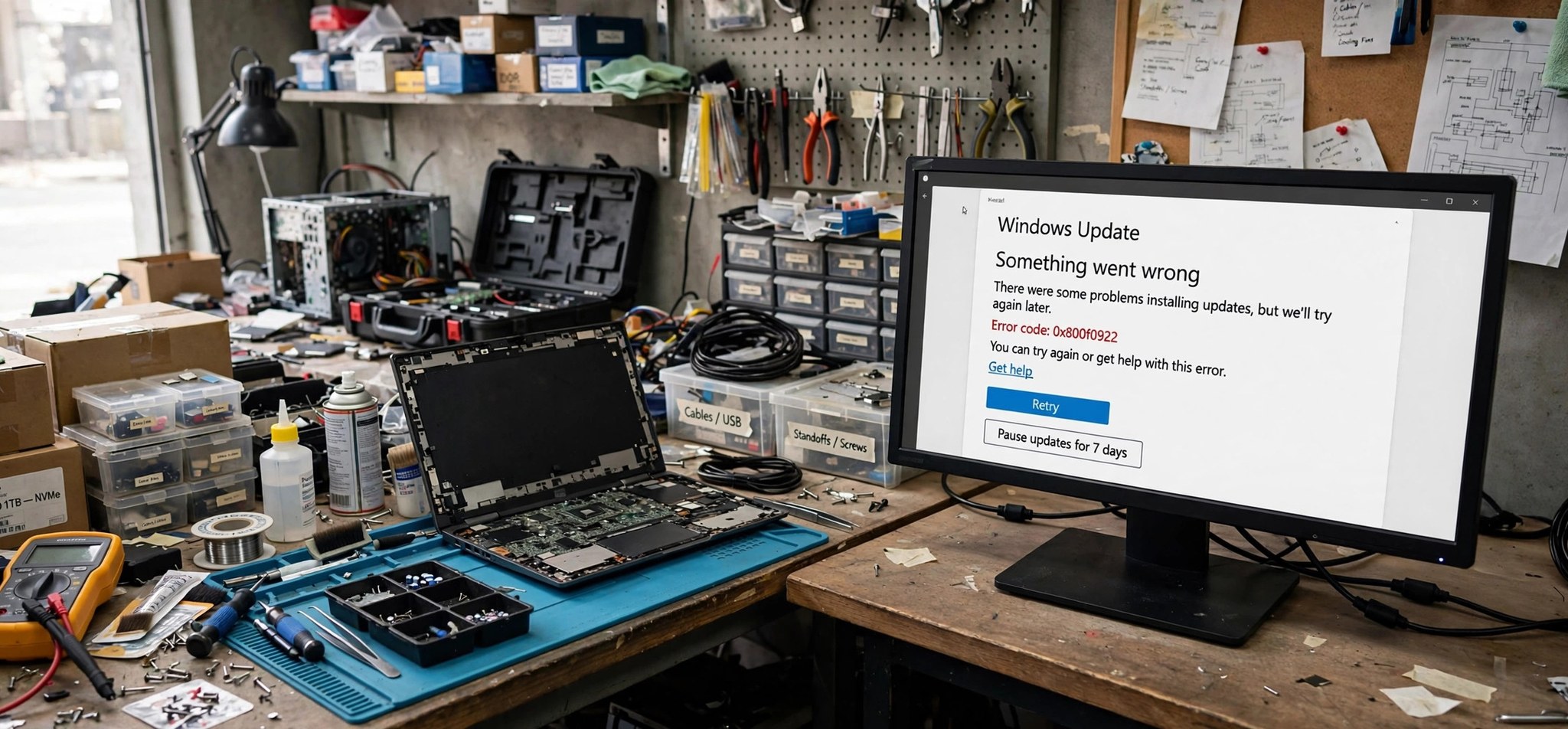
The 0x8024402f windows update error means Windows Update tried to reach its update server and the connection failed. You will typically see “There were some problems installing updates” followed by this code. Unlike permission or corruption errors, this one is about communication — your PC cannot properly talk to Microsoft’s update servers (or your company’s WSUS server). The 5 fixes below address each layer of that connection.
If your updates fail with a service-startup message instead, our 0x80070422 fix guide covers that scenario.
What Causes the 0x8024402F Error?
At its core, 0x8024402F is a connectivity failure between the Windows Update client and the update server. The most common cause on work or school PCs is a misconfigured WSUS (Windows Server Update Services) setup: the PC is pointed at an internal update server that is offline, unreachable, or no longer exists — often a leftover from a previous employer. The client keeps trying the dead server instead of Microsoft’s public servers.
On home PCs, the usual suspects are proxy settings, VPNs, and firewalls that intercept or block the update traffic. An incorrect system date and time can also break the TLS handshake with the update servers, since certificates validate against the clock. Corrupted update components and a stale DNS cache round out the list — the request never leaves the machine cleanly, so the server never gets a chance to answer.
Metered connections add another wrinkle. If your Wi-Fi or Ethernet connection is set as metered, Windows Update pauses most downloads by design — and on some builds the paused state surfaces as 0x8024402F rather than a clear “metered connection” message. Check Settings > Network & internet > Wi-Fi (or Ethernet), open your connection, and make sure Metered connection is off before troubleshooting further.
How to Fix the 0x8024402F Error
Fix 1: Switch from WSUS to Microsoft Update Servers
If your PC is pointed at a dead internal update server, redirect it to Microsoft.
- Press Win + R, type regedit, and press Enter. Confirm the UAC prompt.
- Navigate to HKEY_LOCAL_MACHINE\SOFTWARE\Policies\Microsoft\Windows\WindowsUpdate\AU.
- In the right pane, double-click UseWUServer and set its value data to 0. If the value does not exist, that is fine — move on.
- Also check HKEY_LOCAL_MACHINE\SOFTWARE\Policies\Microsoft\Windows\WindowsUpdate for WUServer and WUStatusServer entries; delete them if they point to a server you do not recognize.
- Open an elevated Command Prompt and run gpupdate /force, then restart your PC.
- Check for updates again — the client will now contact Microsoft directly.
Fix 2: Check Proxy, VPN, and Firewall Settings
Anything sitting between your PC and the internet can break the update connection.
- Temporarily disconnect any VPN — VPNs are a leading cause of 0x8024402F.
- Open Settings > Network & internet > Proxy and make sure Automatically detect settings is on and Use a proxy server is off (unless your network genuinely requires one).
- In an elevated Command Prompt, reset the WinHTTP proxy to direct access: netsh winhttp reset proxy
- Open Windows Security > Firewall & network protection and confirm the firewall is on but not blocking Windows Update — third-party firewalls should be set to allow svchost.exe outbound HTTPS.
- Retry the update check.
Fix 3: Sync Date/Time and Flush DNS
A wrong clock breaks certificate validation; a stale DNS cache can point you at dead server addresses.
- Right-click the clock in the taskbar and choose Adjust date and time.
- Turn on Set time automatically and Set time zone automatically, then click Sync now.
- Open an elevated Command Prompt and run:
ipconfig /flushdns
netsh winsock reset - Restart your PC and try updating again.
Fix 4: Reset the Windows Update Components
A corrupted update client can fail its server handshake even when the network is fine.
- Open an elevated Terminal or Command Prompt.
- Stop the services:
net stop wuauserv
net stop cryptSvc
net stop bits
net stop msiserver - Rename the cache folders:
ren C:\Windows\SoftwareDistribution SoftwareDistribution.old
ren C:\Windows\System32\catroot2 catroot2.old - Restart the services:
net start wuauserv
net start cryptSvc
net start bits
net start msiserver - Restart and check for updates.
Fix 5: Run SFC/DISM and the Update Troubleshooter
This catches the remaining cases: corrupted system files and misconfigurations the troubleshooter can auto-repair.
- Open an elevated Command Prompt and run sfc /scannow.
- When it finishes, run DISM /Online /Cleanup-Image /RestoreHealth.
- Restart, then open Settings > System > Troubleshoot > Other troubleshooters and run the Windows Update troubleshooter.
- Apply its recommendations and run one final update check.
How to Prevent This Error
- If you leave a job or school, remove old WSUS/GPO settings so your PC talks to Microsoft directly.
- Keep VPN apps updated, and disconnect the VPN when running Windows Update if problems appear.
- Leave date/time on automatic — a drifting clock causes more update failures than people expect.
- Do not route Windows Update through sketchy “free proxy” setups.
- Run the update troubleshooter at the first sign of repeated update failures instead of letting the cache corrupt further.
FAQs
What does error 0x8024402F mean?
It means the Windows Update client failed to connect to its configured update server. The server may be unreachable, misconfigured (stale WSUS entries), or blocked by a proxy, VPN, or firewall on your end.
Why do I get 0x8024402F on a work laptop?
Work laptops are often managed by WSUS or Intune policies pointing at a company server. If you are off the corporate network or the policy is outdated, the client cannot reach the server. Connect to the company VPN, or ask IT to update the policy. Microsoft’s official troubleshooting page for this error covers the enterprise side in depth.
Can a VPN cause 0x8024402F?
Yes — it is one of the most common home-user causes. VPNs can route update traffic through regions or endpoints that Microsoft’s update infrastructure rejects, or simply break the connection. Disconnect the VPN and retry; if the update works, the VPN was the problem.
Is 0x8024402F a virus?
No, the code itself is not malware. However, malware that hijacks proxy settings or blocks security updates can produce it as a side effect. If the error appeared alongside other strange behavior, run a full Windows Security scan.
How is 0x8024402F different from 0x80072EE2?
Both are connection errors, but 0x80072EE2 specifically means the operation timed out, while 0x8024402F is the broader “failed to connect to the update server” code. The fixes overlap heavily — proxy, VPN, WSUS, and component resets help both.
Can I just download updates manually instead?
Yes, as a workaround. Find the KB number in Settings > Windows Update > Update history, download it from the Microsoft Update Catalog, and install the .msu directly. This keeps you patched while you sort out the underlying connection problem — but do not treat it as a permanent fix, since future updates will hit the same wall.
Conclusion
The 0x8024402F error is a communication breakdown, not a broken Windows. Start with the connection layer — WSUS redirection, VPN/proxy, clock and DNS — and most cases clear up without touching system files. Only if those fail should you reach for the heavier component resets. Once updates flow again, they tend to stay flowing.


