
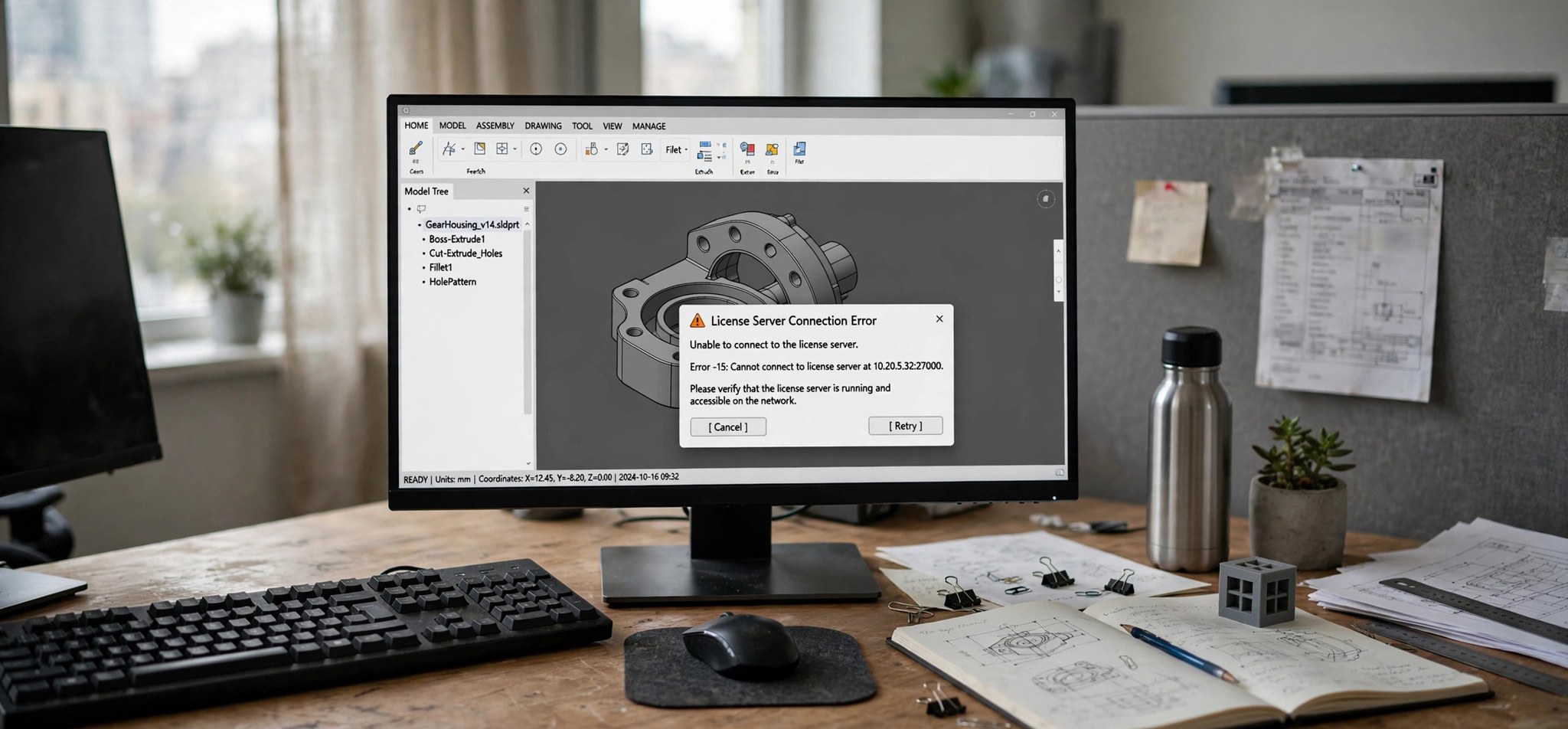
You launch AutoCAD and instead of your workspace you get a licensing dialog: license checkout timed out. Whether you use a network license served from your company’s license manager or a named-user subscription tied to your Autodesk account, this error means AutoCAD asked for permission to run and never got an answer. This guide explains the real causes and gives you seven fixes in the order a license administrator would try them. If your AutoCAD problem is a freeze rather than a license message, see AutoCAD not responding on startup instead.
What Causes the AutoCAD License Checkout Timed Out Error?
At its core, this error is a communication failure. With a network (multi-user) license, your computer must reach the license server over your company network and get a license token back within a timeout window. Anything that breaks or slows that conversation produces the timeout: the license server being down or rebooting, your PC losing its network route to the server, or a firewall blocking the ports the license manager uses (2080 and the 27000–27009 range).
Even when the server is healthy, licenses can simply run out. If every available seat is checked out by colleagues — or if borrowed licenses have not been returned — your request waits until the timeout expires. An incorrect system clock can also cause failures, since license validation is time-sensitive.
With named-user (subscription) licensing, the conversation is with Autodesk’s servers instead of a local one, and the usual culprits are sign-in problems: a stale login token, being signed in with the wrong Autodesk ID, or security software blocking Autodesk’s web services. VPNs and proxy servers sit in the middle of both license types and are frequent troublemakers.
How to Fix AutoCAD License Checkout Timed Out
First, identify your license type: network licenses are managed by your IT department through a license server, while subscription licenses sign in with an Autodesk ID. Some fixes apply to both; a few are type-specific.
1. Check Your Network Connection and Sign In Again
The simplest cause is also the most common — a dropped or changed network connection. For subscription licenses, a stale sign-in token is the equivalent problem. Refreshing both takes two minutes.
- Confirm your internet or company network connection is working by opening a website or a network drive.
- In AutoCAD, click your profile menu (top right) and choose Sign out, then sign back in with the Autodesk ID that holds your subscription.
- If you use a network license, disconnect and reconnect to the company VPN if you work remotely — license traffic must route through it.
- Try launching AutoCAD again.
2. Verify the License Server Is Running (Network Licenses)
If colleagues can check out licenses but you cannot, the problem is your machine. If nobody can, the server itself is down — but you can still confirm it before calling IT.
- On the license server (or ask your IT admin), open LMTOOLS from the Autodesk Network License Manager.
- Go to the Server Status tab and click Perform Status Enquiry.
- Check that the vendor daemon is running and that licenses show as available, not all checked out.
- If the service is stopped, restart it from the Start/Stop/Reread tab, then retry AutoCAD on your machine.
3. Open the Required Firewall Ports
The Autodesk network license manager communicates on port 2080 (for the adskflex vendor daemon) and ports 27000–27009 (for lmgrd). If a firewall on your PC, the server, or anywhere in between blocks these, checkout requests time out silently.
- On your PC, open Windows Defender Firewall > Advanced settings.
- Check inbound and outbound rules for anything blocking ports 2080 or 27000–27009, and allow them for your network profile.
- Ask your IT admin to confirm the same ports are open on the license server’s firewall and any firewall between you and the server.
- Temporarily disable your local firewall as a test — if AutoCAD launches, you have found the cause. Re-enable it with the proper rules in place.
4. Reset the Autodesk Login State (Subscription Licenses)
When sign-in tokens go stale, AutoCAD can loop on license verification until it times out. Autodesk’s documented remedy is to delete the stored login state so the next launch forces a clean sign-in.
- Close all Autodesk applications.
- Press Win + R, type %localappdata%\Autodesk\Web Services\, and press Enter.
- Delete the file named LoginState.xml.
- Launch AutoCAD and sign in fresh with your Autodesk ID when prompted.
5. Check for Borrowed or Expired Licenses
Borrowed licenses that were never returned, or a subscription that lapsed, produce checkout failures that look like timeouts. This is worth checking before deeper network troubleshooting.
- For network licenses, ask your license administrator to check the license file’s expiry and whether seats are genuinely available.
- If you previously borrowed a license for offline work, return it early through the borrowing utility so the seat frees up.
- For subscription licenses, sign in to your Autodesk account in a browser and confirm your subscription is active and assigned to your user.
- Make sure your computer’s date, time, and time zone are correct — license validation fails on machines with a wrong clock.
6. Bypass VPN and Proxy Interference
VPNs and proxy servers frequently break license traffic — either by routing it wrongly or by inspecting and delaying the handshake past the timeout window.
- If you are on a VPN you do not need for licensing, disconnect it and retry AutoCAD.
- Check Settings > Network & Internet > Proxy and turn off any proxy or “automatically detect settings” that your network does not require.
- In your browser, confirm you can reach autodesk.com — if Autodesk’s own sites are blocked, license traffic is blocked too.
- Corporate users: ask IT whether license traffic must go through the VPN tunnel or bypass it.
7. Update the License Manager and Contact Your Admin
An outdated Network License Manager on the server can refuse checkouts from newer AutoCAD clients. And when everything local checks out, the answer lives on the server side.
- Ask your IT admin which version of the Autodesk Network License Manager the server runs, and have them update it to the version recommended for your AutoCAD release.
- Have the admin check the debug log on the server for your machine’s checkout attempts — it records exactly why each request failed.
- For subscription licenses that still fail after a login reset, contact Autodesk support with your serial number or contract details ready.
- As a stopgap, ask whether a different license type (a trial or a borrowed seat) can keep you working while the server issue is resolved.
How to Prevent AutoCAD License Checkout Timed Out
- Keep the license server patched and monitored — most timeouts trace back to a server nobody was watching.
- Document the firewall rules for ports 2080 and 27000–27009 so they survive server migrations and firewall rebuilds.
- Return borrowed licenses promptly instead of letting them sit checked out.
- Keep AutoCAD and the Network License Manager on compatible versions — check Autodesk’s compatibility guidance before upgrading either side.
- Sync your system clock automatically (Settings > Time & Language > Set time automatically).
- Test license checkout after any network change — VPN reconfigurations and firewall updates are the classic “it worked yesterday” triggers.
FAQs
What does “license checkout timed out” actually mean?
AutoCAD requested a license — from your company’s license server or from Autodesk’s subscription services — and did not receive a response within the allowed time. It is a communication failure, not a message that your license is invalid, which is why network and firewall fixes top the list.
Can I use AutoCAD offline to avoid this?
With a network license, you can borrow a license in advance for offline use — but the borrowing itself requires a successful server connection first. Named-user subscriptions also need periodic online verification. There is no fully offline mode for current AutoCAD licensing.
Why does it work for my colleagues but not for me?
That pattern points at your machine or your network path: your local firewall, your VPN routing, a stale login on your PC, or a proxy setting unique to your setup. Fixes 1, 3, 4, and 6 are the ones to focus on.
How do I know whether I have a network or subscription license?
Ask your IT department — but the quick tell is the behavior: if AutoCAD asks you to sign in with an email address, it is a named-user subscription. If it just launches on the office network (or fails with server-style errors), it is almost certainly a network license served by LMTOOLS.
Will reinstalling AutoCAD fix a license timeout?
Almost never. Reinstallation does not change network routes, firewall rules, server status, or your Autodesk ID. It is worth trying only after the communication-side fixes have been ruled out.
Conclusion
“License checkout timed out” is AutoCAD telling you it could not complete a conversation — with your license server or with Autodesk’s sign-in services. Refresh your connection and sign-in, verify the server is up, open the documented firewall ports, and reset a stale login state, and the large majority of cases resolve without reinstalling anything. For network environments, keeping the license manager updated and the firewall rules documented turns this from a recurring fire drill into a rare event.
Related Fixes
- AutoCAD Not Responding on Startup: 6 Fixes — when AutoCAD freezes during launch instead of showing a license error.
- AutoCAD Error 1603: Installation Failed (5 Fixes) — when you cannot get AutoCAD installed in the first place.
- AutoCAD Fatal Error Unhandled Access Violation: 6 Fixes — when AutoCAD crashes outright instead of hanging on licensing.


