
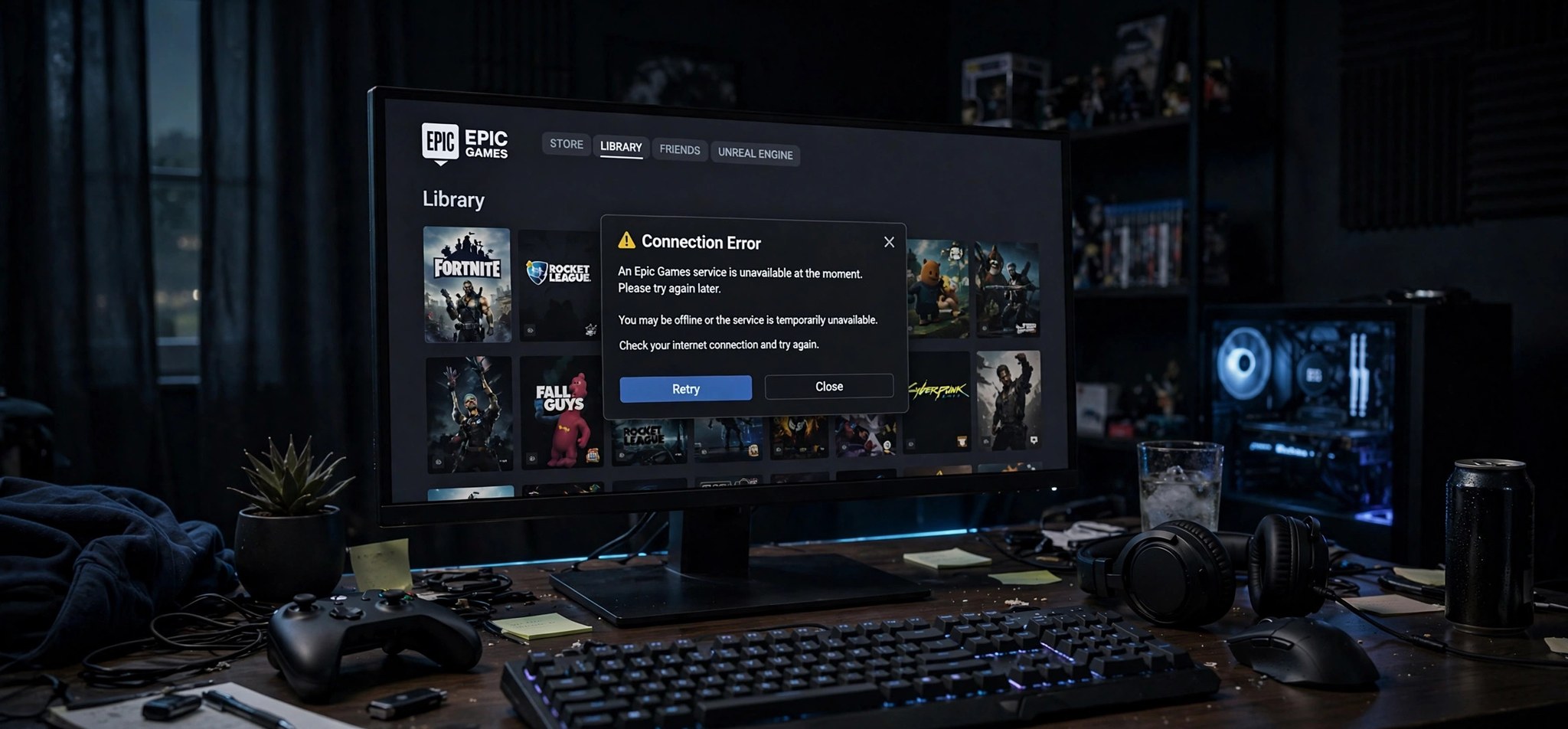
You click Launch, the button spins for a moment, and then the Epic Games Launcher gives up: Error LS-0013, “Launch Failed.” Epic Games error LS-0013 means the launcher could not start your game — the game files, the launcher’s permissions, or something on your system blocked the handoff. This guide covers what actually causes LS-0013 and six fixes that get your game launching again, in the order you should try them. For connection-style failures in the other big launcher, see our guide to Steam error code 118.
What Causes the Epic Games Error LS-0013?
LS-0013 is a launch failure, not a download failure — your game is installed, but the final step of starting it breaks. The most common cause is corrupted or incomplete game files. If a download was interrupted, a disk wrote bad data, or an update applied partially, the launcher detects the mismatch and refuses to launch rather than start a broken game.
The second major cause is permissions. The Epic Games Launcher needs administrator-level access to start some games’ anti-cheat services and executables. If the launcher runs without sufficient privileges — or if Windows User Account Control, antivirus quarantine, or controlled folder access blocks the game executable — the launch dies with LS-0013. Overzealous antivirus software is a particularly frequent culprit: it quarantines a game file as a false positive, and the launcher can no longer assemble a complete, launchable game.
Finally, the launcher itself can be the problem. A corrupted web cache inside the Epic Games Launcher, an outdated launcher version, or leftover state from a crashed session can all prevent launches even when the game files are perfect. The fixes below address the game files first, then permissions, then the launcher.
How to Fix the Epic Games Error LS-0013
Try these in order — verification and a permissions check resolve most LS-0013 cases without touching your installation.
1. Verify the Game Files
Verification scans your installed game against Epic’s servers and re-downloads anything missing or corrupted. It is the highest-success first step for LS-0013.
- Open the Epic Games Launcher and go to your Library.
- Click the three dots under the affected game and choose Manage.
- Click Verify (labeled “Verify files”) and wait for the scan to complete — this can take several minutes for large games.
- Let the launcher download and replace any bad files it finds.
- Try launching the game again.
2. Run the Epic Games Launcher as Administrator
Many LS-0013 failures are permission problems in disguise. Running the launcher elevated gives it the rights it needs to start game services and anti-cheat drivers.
- Close the Epic Games Launcher completely — right-click its tray icon and choose Exit.
- Right-click the Epic Games Launcher shortcut and choose Run as administrator.
- Try launching your game from the elevated launcher.
- If this fixes it, make it permanent: right-click the shortcut, open Properties > Compatibility, and check Run this program as an administrator.
3. Check Your Antivirus Quarantine
Antivirus false positives on game executables are a classic LS-0013 trigger — the game cannot launch because a critical file is sitting in quarantine. This often happens right after a game update introduces new executables.
- Open your antivirus and check its Quarantine or Threat history for files from your game’s install folder.
- If game files were quarantined, choose Restore for them.
- Add the game’s install folder and the Epic Games Launcher folder to your antivirus exclusions so it does not happen again.
- Run the file verification from fix 1 once more to repair anything the quarantine damaged, then launch.
4. Clear the Epic Games Launcher Web Cache
The launcher stores web session data in a local cache folder, and a corrupted cache can break game launches even when everything else is healthy. Clearing it forces a clean state without affecting your installed games.
- Exit the Epic Games Launcher completely via the tray icon.
- Press Win + R, type %localappdata%, and press Enter.
- Open EpicGamesLauncher\Saved and delete the webcache folder (and webcache_4147 / webcache_4430 if present).
- Restart the launcher, sign in again if asked, and try launching your game.
5. Update Windows and Your Drivers
Some games refuse to launch when the system is missing required updates — particularly Visual C++ runtimes, .NET components, or GPU drivers that the game’s anti-cheat expects.
- Open Settings > Windows Update and install all pending updates, then restart.
- Update your GPU driver from NVIDIA, AMD, or Intel directly.
- Make sure the Epic Games Launcher itself is current — it normally updates automatically, but a manual check under Settings in the launcher does no harm.
- Launch the game again.
6. Reinstall the Epic Games Launcher
If the launcher itself is damaged, reinstalling it is the clean fix. Your installed games can be preserved so you do not have to redownload them.
- Note your games’ install locations (Library > three dots > Manage shows the path for each).
- Uninstall the Epic Games Launcher from Settings > Apps > Installed apps.
- Download the latest installer from Epic Games Support and install it fresh.
- Sign in, then point the launcher at your existing game folders (or reinstall games into the same location so existing files are detected).
- Run a file verification on the affected game, then launch.
How to Prevent Epic Games Error LS-0013
- Keep antivirus exclusions for your games folders — set them once and false-positive quarantines stop happening.
- Do not interrupt downloads or updates. Pausing mid-update is fine, but force-closing the launcher during a write is how files get corrupted.
- Run the launcher as administrator by default via the Compatibility tab so permissions never silently block a launch.
- Keep Windows and GPU drivers current — game updates increasingly assume recent runtimes and drivers.
- Leave enough free disk space (10+ GB) so updates never fail halfway from a full drive.
FAQs
What does LS-0013 mean exactly?
It is Epic’s code for a game launch failure: the launcher tried to start the game process and something prevented it. The usual suspects are damaged game files, missing permissions, or antivirus interference — not your Epic account or purchase.
Will verifying files delete my save games?
No. Verification only checks and repairs the game’s installed program files. Your saves are stored separately (locally or in Epic’s cloud saves) and are not touched by the verify process.
Why does LS-0013 appear after a game update?
Updates replace executables and data files, which is exactly when antivirus false positives strike and when partial writes corrupt files. Verifying files right after a problematic update fixes the large majority of post-update LS-0013 cases.
Does LS-0013 affect all my games or just one?
Usually just one — a single game’s files or permissions are the problem. If every game fails with LS-0013, the launcher itself or a system-wide blocker (antivirus, permissions) is at fault, so focus on fixes 2, 3, and 6.
Should I reinstall the game before reinstalling the launcher?
Try verifying the game first — it repairs files without a full redownload. Reinstall the game only if verification repeatedly fails. Reinstall the launcher (fix 6) when all games fail or the launcher itself behaves erratically.
Conclusion
Epic Games error LS-0013 looks alarming but has a short list of real causes: damaged game files, blocked permissions, antivirus quarantines, or a corrupted launcher cache. Verify the game files, run the launcher as administrator, and check your antivirus quarantine — those three steps resolve nearly every case. Keep your exclusions and permissions set up properly afterward, and your games will launch first click, every time.
Related Fixes
- Steam Error Code 118: 6 Connection Fixes — when Steam, not Epic, cannot reach its servers.
- Chrome ERR_CONNECTION_RESET: 9 Fixes (2026) — when connection drops hit your browser instead of your games.
- DNS_PROBE_FINISHED_NO_INTERNET: 8 Chrome Fixes — when DNS problems are breaking your connections.


