
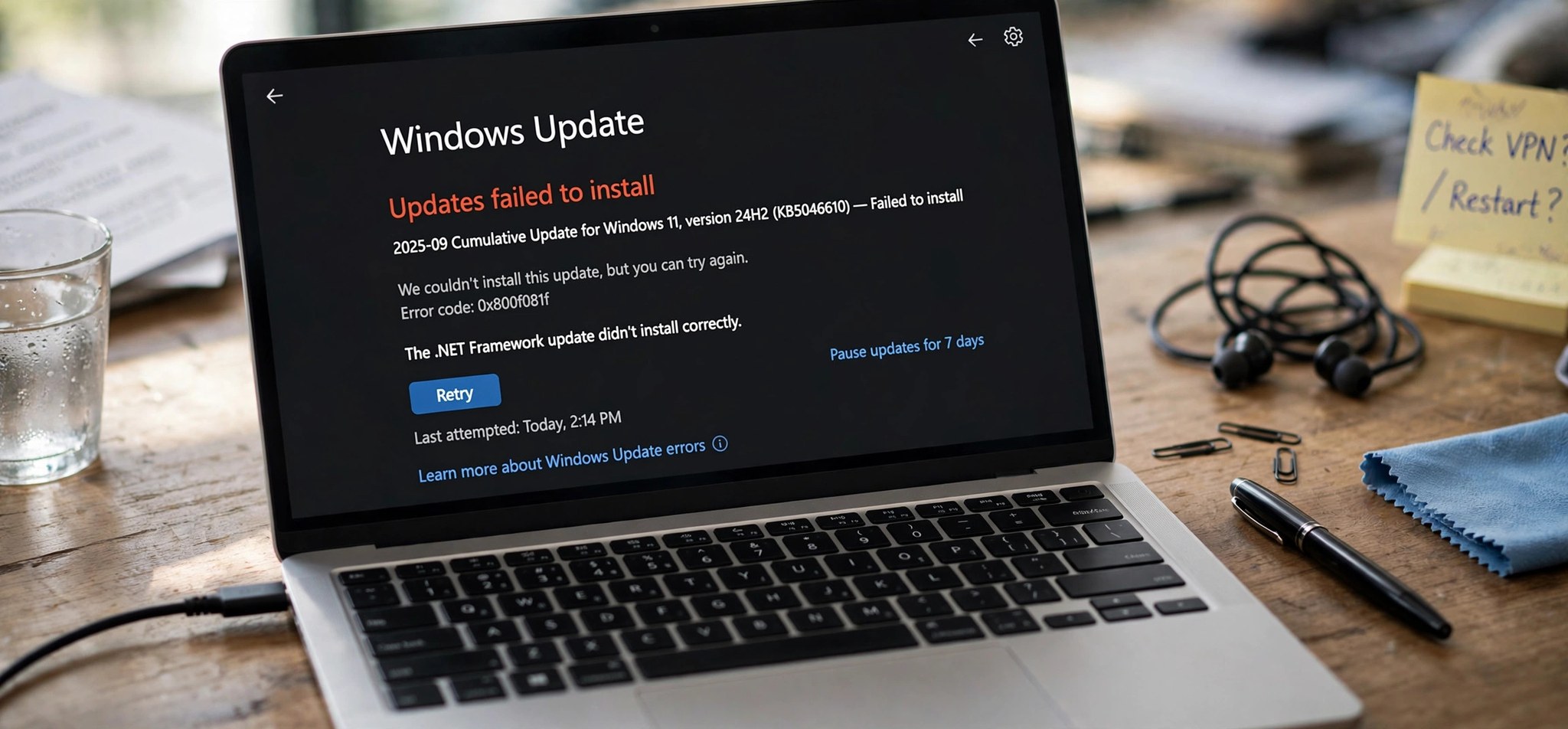
The 0x80070422 windows update error appears when the Windows Update service cannot start — the message usually reads “There were some problems installing updates” with the code 0x80070422. It is one of the more straightforward update errors: Windows is simply telling you a required background service is disabled or stuck. The 6 fixes below will get the service running again and updates flowing, usually in under 15 minutes.
This error often travels with other update failures, so if you see a different code afterward, check our guide to the 0x8024402F Windows Update error next.
What Causes the 0x80070422 Error?
Error 0x80070422 means “The service cannot be started, either because it is disabled or because it has no enabled devices associated with it.” In practice, the Windows Update service (wuauserv) — or one of its dependencies like Background Intelligent Transfer Service (BITS) — has its startup type set to Disabled, or it crashed and cannot restart. Third-party “privacy” or “debloater” tools are notorious for disabling these services, as are some aggressive antivirus suites.
The error can also be triggered by the Network List Service being disabled, since Windows Update checks network connectivity before starting. Corrupted service registrations after a failed update, or Group Policy settings on work PCs that turn off automatic updating, produce the same code. On rare occasions, malware disables update services deliberately to keep security patches from installing — which is why a scan is worth doing if the service keeps turning itself off.
How to Fix the 0x80070422 Error
Fix 1: Set the Windows Update Service to Automatic and Start It
This is the direct fix for the most common cause.
- Press Win + R, type services.msc, and press Enter.
- Scroll to Windows Update and double-click it.
- Set Startup type to Automatic (not Manual, not Disabled).
- Click Start under Service status. If it is already running, click Stop then Start to restart it.
- Click Apply, then OK.
- Go to Settings > Windows Update and click Check for updates.
Fix 2: Enable the Dependent Services
Windows Update depends on several other services that must also be running.
- In services.msc, check each of these services and set its Startup type to Automatic, then start it:
Background Intelligent Transfer Service (BITS), Cryptographic Services, Windows Installer, and Network List Service. - Double-click each service, set the startup type, click Start, then Apply.
- Restart your PC and try checking for updates again.
Fix 3: Run the Windows Update Troubleshooter
The troubleshooter can detect service misconfigurations automatically.
- Open Settings > System > Troubleshoot > Other troubleshooters (Windows 11) or Settings > Update & Security > Troubleshoot > Additional troubleshooters (Windows 10).
- Click Run next to Windows Update.
- Apply any fixes it suggests, restart, and test the update check.
Fix 4: Reset the Windows Update Components
If the service starts but updates still fail, the component store may be corrupted.
- Open an elevated Terminal or Command Prompt (right-click Start, choose Terminal (Admin)).
- Stop the services:
net stop wuauserv
net stop cryptSvc
net stop bits
net stop msiserver - Rename the cache folders:
ren C:\Windows\SoftwareDistribution SoftwareDistribution.old
ren C:\Windows\System32\catroot2 catroot2.old - Restart the services:
net start wuauserv
net start cryptSvc
net start bits
net start msiserver - Restart the PC and check for updates.
Fix 5: Check IPv6 and Network Settings
On some systems, a disabled IPv6 stack breaks the service dependencies Windows Update relies on.
- Open Control Panel > Network and Internet > Network Connections.
- Right-click your active connection and choose Properties.
- Make sure Internet Protocol Version 6 (TCP/IPv6) is ticked. If it was unticked, tick it and click OK.
- Also confirm the Network List Service is set to Automatic in services.msc (see Fix 2).
- Restart and retry the update.
Fix 6: Scan for Malware and Check Group Policy
If the service keeps disabling itself, something is turning it off.
- Run a full scan: open Windows Security > Virus & threat protection > Scan options > Full scan.
- On Pro editions, press Win + R, type gpedit.msc, and navigate to Computer Configuration > Administrative Templates > Windows Components > Windows Update.
- Double-click Configure Automatic Updates — set it to Not Configured unless your organization requires a specific setting.
- Restart the Windows Update service once more and test.
How to Prevent This Error
- Avoid “debloat” and “privacy” scripts that disable Windows services — they are the number one cause of this error.
- Leave the Windows Update, BITS, and Cryptographic Services startup types at their defaults.
- Keep Windows Security real-time protection enabled so malware cannot silently kill update services.
- Do not disable IPv6 unless you have a specific, verified reason.
- After using any system-tweaking utility, verify in services.msc that nothing critical was set to Disabled.
FAQs
What does error 0x80070422 mean?
It means the Windows Update service (or a service it depends on) is disabled or cannot start. Windows Update cannot function without these background services running, so the update check fails immediately with this code.
Why does the Windows Update service keep turning itself off?
Usually a third-party tool is doing it — debloaters, privacy utilities, some “game booster” apps, or occasionally malware. Check your installed programs for anything that claims to disable Windows telemetry or updates, and remove or reconfigure it.
Is it safe to set Windows Update to Automatic?
Yes — Automatic is the default and recommended setting. It lets Windows download and stage updates in the background. You still control when restarts happen through active-hours settings, so Automatic startup does not mean surprise reboots.
Can 0x80070422 appear on Windows 10 too?
Yes. The services and fixes are identical on Windows 10 and 11. The only differences are cosmetic — Settings menu layouts — and both paths are covered above. Microsoft documents the general update troubleshooting flow at support.microsoft.com.
What if the Start button is greyed out in services.msc?
That means the service is Disabled at a deeper level or a policy is blocking it. Make sure you opened services.msc as an administrator, check the Group Policy setting in Fix 6, and scan for malware. If a work PC is managed by your employer, contact IT — they may intentionally control updates.
Can I fix 0x80070422 from the Command Prompt instead?
Yes. In an elevated Command Prompt, run sc config wuauserv start= auto (note the space after the equals sign — it is required), then net start wuauserv. Repeat for the dependency services with sc config bits start= auto, sc config cryptsvc start= auto, and sc config msiserver start= demand. This is handy when the Services GUI itself is misbehaving.
Conclusion
Error 0x80070422 is Windows telling you plainly that its update service cannot start. In most cases, flipping the Windows Update service back to Automatic (Fix 1) plus its dependencies (Fix 2) solves it in minutes. If the service refuses to stay on, look for the tool or malware that keeps disabling it rather than fighting the symptom. Once updates run again, keep an eye on the related guides below for any follow-on codes.
One more scenario worth knowing: on some PCs the error appears only for optional or driver updates while cumulative updates install fine. That usually means a third-party driver utility has taken over driver servicing. Open Settings > Windows Update > Advanced options > Optional updates and install pending driver updates from there, then uninstall the third-party driver tool so Windows regains full control of the update pipeline.


