
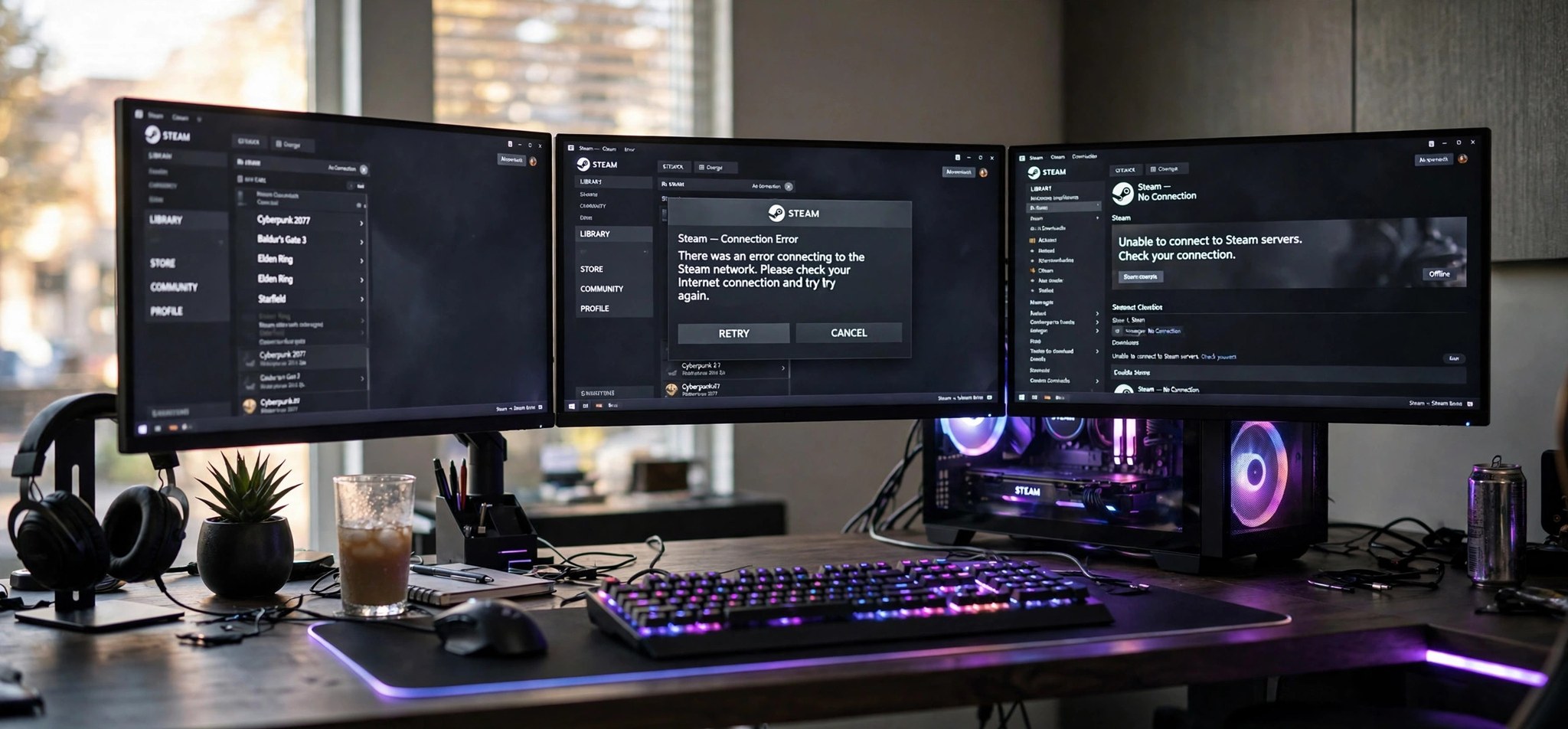
You open Steam to browse the store or check your library, and instead of games you get a blank page: Error Code: -118, “Unable to connect to server.” Steam error code 118 means the Steam client cannot reach Steam’s servers — your games are fine, your account is fine, but the connection between the two is broken. This guide explains what causes it and walks you through six fixes that restore the connection, from the thirty-second router restart to a clean client reinstall. If your launcher problem is on Epic’s side instead, our guide to Epic Games error LS-0013 covers that separately.
What Causes the Steam Error Code 118?
Error 118 is Steam’s way of saying a network request timed out — the client sent a request to Steam’s servers and got nothing back. The most common cause is security software: Windows Firewall or a third-party antivirus blocking Steam’s executable or its web traffic. Steam updates itself and its built-in browser frequently, and after an update the firewall sometimes stops recognizing the new executable and silently blocks it.
The second major cause lives in your network setup. A router that needs restarting, corrupted DNS cache entries pointing at dead Steam server addresses, or an ISP-side hiccup can all produce 118. VPNs and proxy servers are frequent culprits too — Steam is sensitive to connection tampering, and a VPN endpoint that throttles or reroutes traffic can break the client’s server handshake entirely.
Least often, the Steam client installation itself is damaged: corrupted client files or a broken built-in browser cache that survives restarts. The fixes below are ordered so you check the common causes first and only reinstall as a last resort.
How to Fix the Steam Error Code 118
Before starting, check store.steampowered.com in your browser. If the Steam website loads fine, the problem is local to your PC or client — which these fixes address. If the site is down too, it may be a Steam outage, and waiting is the only fix.
1. Restart Your Router and Modem
Stale NAT sessions and hung router firmware cause more 118 errors than most people expect. A full power cycle clears them in a couple of minutes.
- Close the Steam client completely — right-click the Steam tray icon and choose Exit.
- Unplug your router and modem from power. Wait a full 60 seconds.
- Plug the modem back in first, wait for its lights to stabilize, then plug in the router.
- Once your connection is back, launch Steam and check whether error 118 is gone.
2. Allow Steam Through Your Firewall and Antivirus
This is the single most effective fix for error 118. Steam needs both its main executable and its web helper processes to reach the internet freely.
- Open Settings > Privacy & Security > Windows Security > Firewall & network protection.
- Click Allow an app through firewall, then Change settings.
- Find Steam in the list and make sure both Private and Public boxes are checked. If Steam is missing, click Allow another app and browse to steam.exe.
- In your third-party antivirus, add steam.exe and the whole Steam folder (usually C:\Program Files (x86)\Steam) to exclusions.
- Restart Steam and test the store page.
3. Flush Your DNS and Renew Your IP
Corrupted DNS cache entries can point Steam at dead server addresses even while your browser works. Flushing the cache and getting a fresh IP forces everything to re-resolve.
- Press Win + R, type cmd, and press Enter.
- Type ipconfig /flushdns and press Enter. You should see “Successfully flushed the DNS Resolver Cache.”
- Type ipconfig /release and press Enter, then ipconfig /renew and press Enter.
- Close the window, restart Steam, and check for error 118.
4. Disable Your VPN and Proxy
VPNs reroute Steam’s traffic through distant servers and sometimes mangle the connection handshake. Proxies configured for browsing can also intercept Steam’s requests. Testing without them isolates the cause instantly.
- Disconnect your VPN completely — not just pause it, fully exit the VPN application.
- Open Settings > Network & Internet > Proxy and turn off Use a proxy server if it is enabled.
- Restart Steam and see if the store loads.
- If disabling the VPN fixes it, try a different VPN server location or add Steam as a split-tunneling exception in your VPN app.
5. Restart Steam as Administrator and Clear the Download Cache
Permission issues and a corrupted download cache can keep error 118 alive across restarts. Running elevated once and clearing the cache addresses both.
- Exit Steam fully via the tray icon.
- Right-click the Steam shortcut and choose Run as administrator.
- In Steam, go to Steam > Settings > Downloads and click Clear Download Cache.
- Confirm, let Steam restart itself, and log back in.
- Check whether the store and library pages now load normally.
6. Reinstall the Steam Client (Keep Your Games)
When nothing else works, the client installation itself is corrupt. You can reinstall without redownloading your games by preserving the right folders.
- Exit Steam completely.
- Open your Steam folder (default C:\Program Files (x86)\Steam) and copy the steamapps folder and userdata folder somewhere safe.
- Uninstall Steam from Settings > Apps > Installed apps.
- Download the latest installer from Steam Support and install it fresh.
- Before launching, move your backed-up steamapps and userdata folders back into the new Steam folder so your games and saves are recognized.
- Launch Steam, log in, and verify error 118 is resolved.
How to Prevent Steam Error Code 118
- Keep the firewall exception permanent. After every major Steam update, glance at your firewall rules to confirm Steam is still allowed.
- Restart your router monthly — or at the first sign of flaky connections — before small network glitches become error 118.
- Use split tunneling for Steam if you run a VPN constantly, so game traffic bypasses the VPN tunnel.
- Do not force-quit Steam during updates. Interrupted updates corrupt the client files that lead to reinstall-level problems.
- Keep Windows and your network drivers updated — outdated network adapter drivers cause intermittent connection drops.
FAQs
Does error 118 mean my Steam account is banned?
No. Error 118 is purely a connectivity error — your account status has nothing to do with it. Account restrictions produce completely different messages. If you can log into steampowered.com in a browser, your account is fine.
Why does the Steam website work but the client shows 118?
Your browser and the Steam client take different network paths and use different executables. A firewall rule blocking steam.exe, a corrupted client cache, or client-specific DNS entries can break the app while the website works perfectly.
Will reinstalling Steam delete my games?
Not if you back up the steamapps folder first, as described in fix 6. Your installed games live there, and restoring the folder after reinstalling means Steam detects them without redownloading.
Can my ISP cause error 118?
Yes, occasionally — ISP-side DNS problems or routing issues can block Steam’s servers specifically. If every device on your network shows the error and your phone on mobile data loads Steam fine, call your ISP or switch to a public DNS as a workaround.
How do I know if it is a Steam outage instead?
Check a third-party status tracker or Steam’s own status pages from your phone’s mobile data. If Steam’s servers are down for everyone, no local fix will help — wait for Valve to resolve it.
Conclusion
Steam error code 118 is almost always a local connection problem, not a Steam problem. Restart your router, make sure your firewall and antivirus are letting Steam through, flush your DNS, and test without your VPN — those four steps clear the error for the vast majority of users. A clean reinstall with your games backed up is the reliable last resort. Once the store loads again, keep the firewall exception in place and your client updated to keep 118 from coming back.
Related Fixes
- Epic Games Error LS-0013: 6 Launch Fixes — when Epic’s launcher, not Steam, refuses to start your games.
- Chrome ERR_CONNECTION_RESET: 9 Fixes (2026) — when your browser, not your game client, keeps dropping connections.
- DNS_PROBE_FINISHED_NO_INTERNET: 8 Chrome Fixes — when DNS failures are behind your connection errors.


