
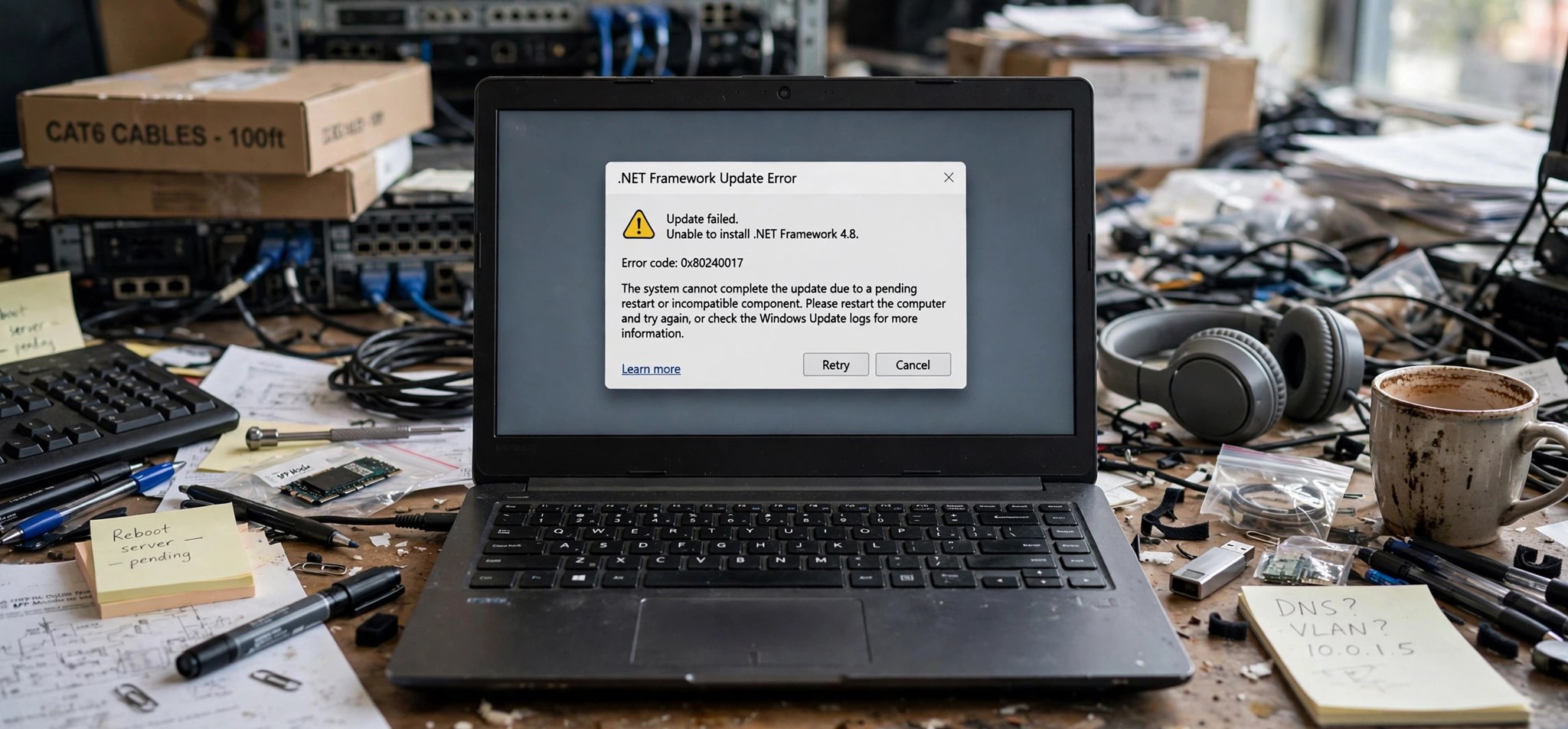
The 0x800f0922 windows update error most often appears when Windows tries to install a .NET Framework update or a feature update and fails partway through. Unlike generic update errors, this one has a signature profile: it loves to strike when a VPN is active, when the .NET Framework 3.5 feature is disabled, or when Secure Boot settings interfere with the installation. The 6 methods below cover each of these angles in the order you should try them.
If your update failure looks different — for example a service that refuses to start — see our 0x80070422 fix guide instead.
What Causes the 0x800F0922 Error?
Error 0x800F0922 is closely tied to the .NET Framework. When Windows Update delivers a .NET update (or a cumulative update that touches .NET components) and the .NET Framework 3.5 Windows feature is turned off, the installer cannot stage the files it needs and fails with this code. The same failure occurs when the component store (WinSxS) is corrupted and cannot supply the .NET payloads.
The second major trigger is network interference. VPN clients reroute traffic in ways that break the update download or the verification handshake, and this error code is the classic symptom. On some machines, Secure Boot or insufficient reserved partition space blocks the servicing stack from completing. Finally, third-party antivirus and firewall products that scan or block the .NET installation temp files can abort the install mid-flight.
There is also a subtle variant tied to dual-boot and multi-drive setups. If the EFI system partition or the recovery partition is nearly full, the servicing stack cannot stage the boot-critical files that .NET and cumulative updates need, and the install dies with 0x800F0922. This is easy to overlook because Windows never warns you that those hidden partitions are full — you have to check them in Disk Management. Expanding or cleaning the recovery partition resolves it.
How to Fix the 0x800F0922 Error
Fix 1: Disconnect the VPN and Retry
VPNs are the single most common trigger for this error.
- Disconnect your VPN completely — not just pause it, but fully disconnect or exit the client.
- Open Settings > Windows Update and click Check for updates.
- If the update installs cleanly, the VPN was the cause. Reconnect it afterward.
- If your VPN has a split-tunneling or “allow local network” option, enabling it may prevent recurrence.
Fix 2: Enable the .NET Framework 3.5 Feature
The update needs this Windows feature present to install .NET payloads.
- Press Win + R, type optionalfeatures, and press Enter to open Windows Features.
- Tick the box for .NET Framework 3.5 (includes .NET 2.0 and 3.0).
- Click OK and let Windows download the required files (you need an internet connection).
- Restart your PC when prompted, then run Windows Update again.
- If the feature was already on, untick it, restart, re-tick it, and restart again — this reinstalls the feature cleanly.
Fix 3: Repair the Component Store with DISM and SFC
A corrupted WinSxS store cannot serve the files the update needs.
- Open an elevated Terminal or Command Prompt (right-click Start, choose Terminal (Admin)).
- Run: DISM /Online /Cleanup-Image /RestoreHealth
- Wait for it to reach 100% (this can take 15–30 minutes), then run: sfc /scannow
- Restart your PC and try the update once more.
Fix 4: Temporarily Disable Third-Party Antivirus/Firewall
Security software can quarantine or block the .NET installer temp files.
- Right-click your antivirus icon in the system tray and choose the temporary-disable option (usually 15–30 minutes).
- Run Settings > Windows Update > Check for updates while protection is paused.
- Re-enable protection immediately afterward, whether the update succeeded or not.
- If the update succeeded, add the Windows Update process to your antivirus exclusions to prevent a repeat — Microsoft documents the standard exclusion guidance at learn.microsoft.com.
Fix 5: Reset the Windows Update Components
Clearing the update cache removes corrupted .NET update payloads stuck in the queue.
- Open an elevated Command Prompt.
- Stop the services:
net stop wuauserv
net stop cryptSvc
net stop bits
net stop msiserver - Rename the cache folders:
ren C:\Windows\SoftwareDistribution SoftwareDistribution.old
ren C:\Windows\System32\catroot2 catroot2.old - Restart the services:
net start wuauserv
net start cryptSvc
net start bits
net start msiserver - Restart your PC and check for updates.
Fix 6: Install the Update Manually or via In-Place Upgrade
If the automatic path keeps failing, sidestep it.
- Find the failing KB number in Settings > Windows Update > Update history.
- Download it from the Microsoft Update Catalog (match x64 or ARM64 to your system) and run the .msu installer.
- If manual install also fails, download the Windows 11 (or 10) Installation Assistant from Microsoft’s official download page and run an in-place upgrade — it reinstalls Windows while keeping files and apps, and resolves deep servicing-stack issues.
How to Prevent This Error
- Keep the .NET Framework 3.5 feature enabled if any of your apps or updates need it.
- Disconnect VPNs before running major Windows or .NET updates.
- Do not let “cleaner” tools purge the WinSxS folder — it breaks the component store.
- Keep security software updated so it does not misidentify update files.
- Maintain at least 15–20 GB free on the system drive for update staging.
- Apply .NET updates promptly instead of letting several pile up.
FAQs
What does error 0x800F0922 mean?
It signals that a Windows update — usually a .NET Framework or feature update — failed during installation. The classic causes are an active VPN, a disabled .NET Framework 3.5 feature, or a corrupted component store.
Why does my VPN cause Windows Update to fail?
VPNs reroute and sometimes filter traffic, which can interrupt the download or break the verification handshake with Microsoft’s servers. The .NET update path seems especially sensitive to this, which is why disconnecting the VPN is the first fix to try.
Do I need .NET Framework 3.5 on Windows 11?
Windows 11 ships with .NET 4.x built in, but 3.5 remains an optional feature many older applications — and some update payloads — still require. Enabling it is safe, small, and reversible.
Will an in-place upgrade delete my files?
No. An in-place upgrade reinstalls Windows over itself while keeping your personal files, apps, and settings. It is the recommended last resort for stubborn servicing errors because it rebuilds the component store cleanly.
How do I know which KB failed?
Open Settings > Windows Update > Update history. Failed updates are listed with their KB numbers and error codes, so you can match the code to the update and download it manually from the Update Catalog.
Can Secure Boot really block a Windows update?
In rare cases, yes. If Secure Boot keys or the boot configuration are damaged, the servicing stack refuses to install boot-critical payloads and reports 0x800F0922. If every other fix fails, check your UEFI firmware settings: Secure Boot should be enabled with the manufacturer’s default keys. Do not disable it permanently — that weakens boot security — but toggling it off and back on can reset a stuck key state.
Conclusion
The 0x800F0922 error has a short list of usual suspects — VPN interference, the .NET Framework 3.5 feature, and component-store corruption — and the fixes above address them in the order of likelihood. Most users are done after Fix 1 or Fix 2. If you fought through several methods, the manual-install and in-place-upgrade routes in Fix 6 will finish the job.


