
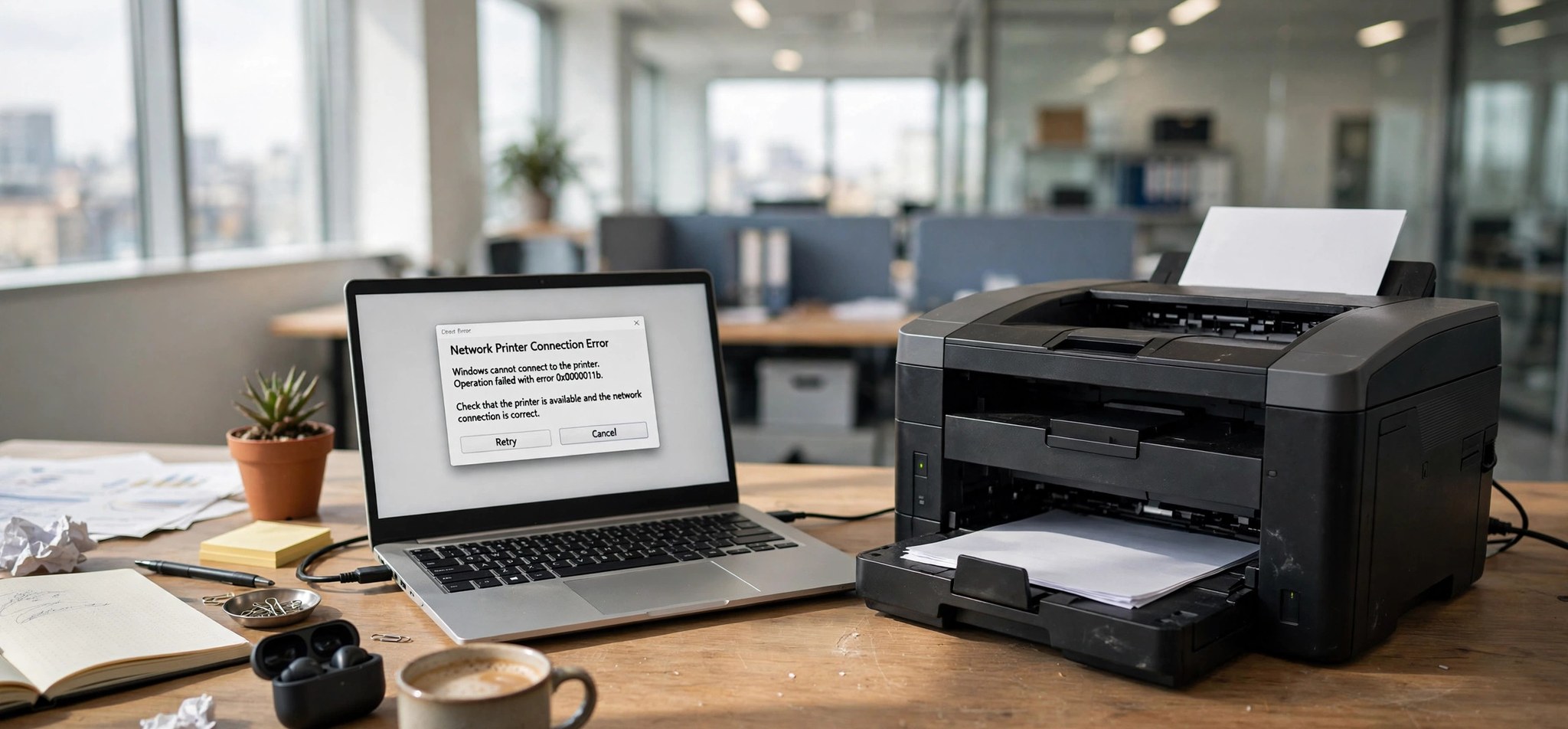
Printer error 0x0000011b appears when Windows cannot connect to a network or shared printer, usually with the message “Windows cannot connect to the printer.” It started affecting large numbers of users after Microsoft’s 2021 security updates for the PrintNightmare vulnerability changed how Windows authenticates print connections. The printer itself is fine — Windows is refusing the connection on security grounds. These five fixes address the actual cause, from the proper long-term solution to the documented workaround. For general printer failures on Windows 11, see our printer in error state fix guide.
What Causes Printer Error 0x0000011b?
In September 2021, Microsoft released security updates (starting with KB5005565 and related patches) that hardened the RPC authentication Windows uses when talking to print servers and shared printers. After these updates, a Windows client requires a higher authentication level by default. If the print server or the shared host is not updated, or its drivers do not comply with the new requirements, the connection fails with 0x0000011b.
In plain terms: your PC got stricter about print security, and the other end of the connection did not keep up. That is why the error overwhelmingly hits network and shared printers rather than USB printers plugged directly into the PC. Mismatched or outdated printer drivers on either side make it worse, since the driver negotiation is part of what the hardened authentication now scrutinizes.
How to Fix Printer Error 0x0000011b
Fix 1: Install All Pending Windows Updates on Both PCs
The correct long-term fix is to bring both ends of the connection up to date. Microsoft has refined print compatibility in later updates, and matching update levels on the client and the print server/host resolve 0x0000011b without any workarounds.
- On your PC, open Settings > Windows Update and click Check for updates. Install everything offered, including optional updates.
- Do the same on the computer sharing the printer (the print server or host PC) — this step is essential and often skipped.
- Restart both computers after updating.
- Remove the failing printer from Settings > Bluetooth & devices > Printers & scanners (select it, click Remove), then re-add it with Add device.
- Try printing a test page.
Fix 2: Apply the RpcAuthnLevelPrivacyEnabled Registry Workaround
Microsoft documented a registry value that relaxes the new RPC authentication requirement back toward the old behavior. This is the widely used workaround when updating both sides is not immediately possible. Back up the registry first: in Registry Editor, click File > Export and save a backup before changing anything. Note that this lowers a security protection, so treat it as temporary until both sides are updated.
- Press Win + R, type regedit, and press Enter. Click Yes on the User Account Control prompt.
- Navigate to HKEY_LOCAL_MACHINE\SYSTEM\CurrentControlSet\Control\Print.
- Right-click in the right pane, choose New > DWORD (32-bit) Value, and name it RpcAuthnLevelPrivacyEnabled.
- Double-click the new value and set Value data to 0. Click OK.
- Close Registry Editor and restart your PC, then try connecting to the printer again.
- Alternatively, run this in an administrator Command Prompt: reg add “HKLM\SYSTEM\CurrentControlSet\Control\Print” /v RpcAuthnLevelPrivacyEnabled /t REG_DWORD /d 0 /f
Fix 3: Reinstall the Printer With the Latest Driver
Old or mismatched drivers are a frequent co-conspirator. A clean reinstall with the current driver from the manufacturer ensures both sides negotiate cleanly.
- Open Settings > Bluetooth & devices > Printers & scanners, select the printer, and click Remove.
- Open Device Manager (press Win + X and select it), expand Print queues, right-click your printer if listed, and choose Uninstall device.
- Visit your printer manufacturer’s support site (HP, Canon, Brother, Epson) and download the latest full driver package for your exact model and Windows version — avoid relying solely on the inbox Windows driver.
- Run the installer, then re-add the printer via Settings > Bluetooth & devices > Printers & scanners > Add device.
- Print a test page to confirm.
Fix 4: Check Point and Print Restrictions
Related PrintNightmare-era policies can block driver installation from the print server, which produces connection failures alongside 0x0000011b. Adjusting them (with admin rights) lets the driver install properly.
- Press Win + R, type gpedit.msc, and press Enter (Windows Pro/Enterprise; Home edition users should use the registry method in Fix 2 instead).
- Navigate to Computer Configuration > Administrative Templates > Printers.
- Open Point and Print Restrictions and set it to Disabled, then click OK.
- Also check Package Point and print – Approved servers and add your print server’s name if your organization uses server allow-listing.
- Run gpupdate /force in an administrator Command Prompt, restart, and retry the printer connection.
Fix 5: Use a Local TCP/IP Port Instead of the Shared Printer
If the shared-printer path keeps failing, bypassing the print server entirely often works: connect directly to the network printer’s IP address as a local printer.
- Find the printer’s IP address from its control panel (usually under Network or Reports > Network Configuration) or your router’s device list.
- Open Settings > Bluetooth & devices > Printers & scanners and click Add device, then Manually add.
- Choose Add a printer using a TCP/IP address or hostname and click Next.
- Enter the printer’s IP address, leave the port name as suggested, and click Next.
- Select your printer’s driver (or install the manufacturer’s driver from disk), finish the wizard, and print a test page.
Microsoft’s official documentation for the Point and Print changes behind this error: KB5005652: Manage new Point and Print default driver installation behavior.
How to Prevent This Error
- Keep Windows updated on both client PCs and any print server or shared host — mismatched update levels are the root cause.
- Use current manufacturer drivers rather than years-old inbox drivers.
- For office networks, prefer direct TCP/IP printer connections over shared-printer hopping where possible.
- Document any registry workarounds you apply so they can be reverted once both sides are updated.
- Give network printers static or reserved DHCP IP addresses so direct-IP connections do not break.
FAQs
What does printer error 0x0000011b mean?
It means “Windows cannot connect to the printer” because the hardened RPC authentication introduced in Microsoft’s 2021 PrintNightmare security updates rejected the connection. The client and the print server/host disagree on the required authentication level, so the connection is refused.
Is the RpcAuthnLevelPrivacyEnabled registry fix safe?
It is Microsoft’s documented workaround, but it deliberately lowers a security protection — that is the trade-off. Use it to restore printing quickly, then update both sides fully and remove the value (set it back to 1 or delete it) to restore the hardened default.
Why does 0x0000011b only affect network printers?
Because the hardened authentication applies to the RPC connection between a client and a print server or shared host. A USB printer connected directly to your PC does not use that network path, so it is unaffected.
Do I need to apply the registry fix on the server too?
The workaround is applied on the client that shows the error. However, the better fix is updating the server/host — an updated print server negotiates the new authentication correctly and no workaround is needed on anyone’s PC.
Will this error come back after future Windows updates?
It should not, as long as both sides stay updated. Microsoft’s later updates improved compatibility rather than tightening things further. If it recurs, check that the print server did not miss its updates.
Conclusion
Printer error 0x0000011b is a security-hardening side effect, not a broken printer. Updating Windows on both the client and the print server is the proper fix; the documented RpcAuthnLevelPrivacyEnabled registry value gets you printing again in the meantime. With current updates and drivers on both ends, network printing works exactly as it should.


