
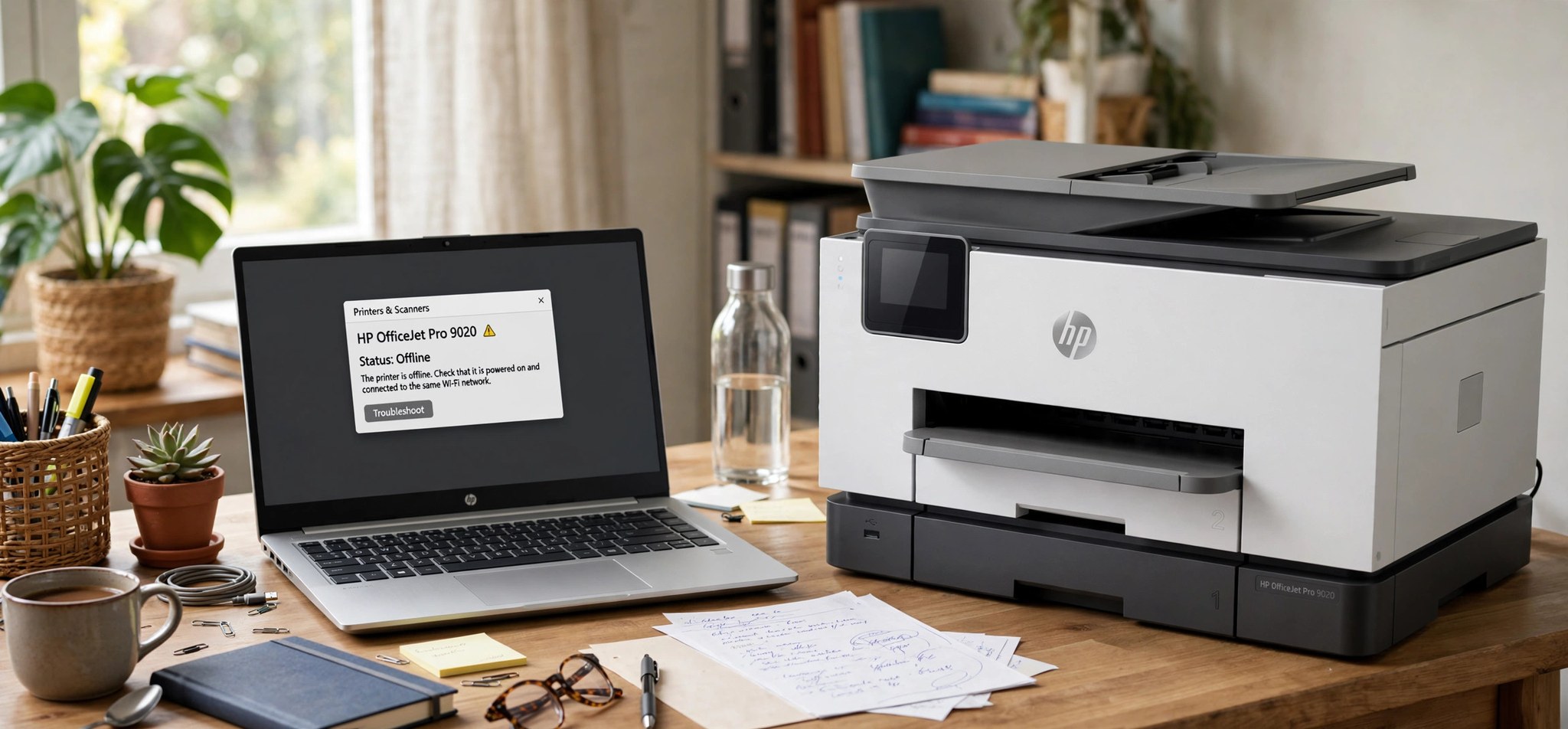
What Causes the HP Printer Offline Error on Windows 11?
When Windows 11 reports your HP printer as offline even though it is powered on and connected to WiFi, it means the operating system cannot reach the printer over the network. The printer may be working fine on its own — printing a test page from its control panel — while Windows insists it is offline. This is a communication breakdown, not a broken printer.
The usual causes are network-related. The printer’s IP address may have changed after a router restart while Windows still points at the old address. The printer may have dropped off the WiFi network entirely, joined the wrong band (2.4 GHz vs 5 GHz), or lost its connection during a firmware hiccup. On the Windows side, the “Use Printer Offline” setting can get stuck on, the printer may not be set as default, the Print Spooler may have stalled, or a driver may be corrupted. Windows 11’s fast startup feature can also leave the network stack in a state where the printer is unreachable until a full restart.
The fixes below start with the quick network checks that solve most cases and move toward driver-level repairs. Work through them in order.
How to Fix HP Printer Offline on Windows 11 Over WiFi
Fix 1: Restart the Printer, Router, and PC
A full power cycle refreshes the printer’s WiFi lease, clears the router’s device table, and resets Windows’ network state. This alone fixes the offline status surprisingly often.
- Turn the printer off with its power button and unplug it from the wall.
- Unplug your router and wait 30 seconds, then plug it back in and wait for it to fully boot.
- Restart your Windows 11 PC (use Restart, not Shut down, to bypass Fast Startup).
- Plug the printer back in and turn it on. Wait until its WiFi light is solid.
- On the PC, open Settings, go to Bluetooth & devices, then Printers & scanners, and check the printer’s status.
Fix 2: Confirm the Printer Is on the Same WiFi Network
If the printer joined a guest network, a different band, or dropped WiFi entirely, Windows cannot see it. Verify the connection from the printer’s own panel.
- On the printer’s control panel, open the wireless or network settings menu.
- Check that WiFi is enabled and the printer is connected to your home network name (SSID), not a guest network.
- Print a wireless network test report from the printer’s menu to confirm signal strength and the IP address it received.
- On your PC, confirm you are connected to the exact same SSID.
- If the printer is not connected, run its wireless setup wizard and reconnect it to your network.
Fix 3: Set the Printer as Default and Disable “Use Printer Offline”
Windows can mark a printer offline in software even when the network is fine. Two settings control this behavior.
- Open Settings, go to Bluetooth & devices, then Printers & scanners.
- Select your HP printer and click Set as default.
- Open the classic Control Panel, go to Devices and Printers.
- Right-click your HP printer and open the Printer menu at the top of the queue window (double-click the printer icon first to open its queue).
- If “Use Printer Offline” has a checkmark next to it, click it to uncheck it.
- Also confirm “Pause Printing” is not checked in the same menu.
Fix 4: Assign a Static IP Address to the Printer
Routers assign IP addresses dynamically, and when the printer’s address changes, Windows keeps sending jobs to the old one. A static (reserved) IP address stops this permanently.
- Find the printer’s current IP address from its network test report or control panel.
- Open your router’s admin page in a browser (commonly 192.168.1.1 or 192.168.0.1).
- Go to the DHCP or LAN settings and find the DHCP reservation / static lease section.
- Add a reservation tying the printer’s MAC address to its current IP address, then save.
- On the PC, remove the printer from Printers & scanners and add it again so Windows stores the stable address.
Fix 5: Run HP Print and Scan Doctor
HP provides a free diagnostic utility that detects and repairs common connectivity and driver problems automatically. It is the fastest route when manual checks have not helped.
- Download HP Print and Scan Doctor from HP’s official support site.
- Run the downloaded file and select your printer when it appears.
- Choose the Fix Printing option and let the tool run its checks.
- Follow any prompts it gives, such as restarting the spooler or reinstalling the driver.
- Print a test page when the tool finishes to confirm the printer is back online.
Fix 6: Restart the Print Spooler and Clear the Queue
A stalled spooler can leave the printer showing offline even with a healthy network. Clearing it resets the print pipeline.
- Press Windows + R, type services.msc, and press Enter.
- Right-click Print Spooler and choose Restart.
- If jobs are stuck, stop the spooler, delete the files in C:\Windows\System32\spool\PRINTERS, then start it again.
- Check the printer status in Printers & scanners.
Fix 7: Reinstall the Printer Driver
Corrupted drivers can misreport the printer’s status. A clean reinstall replaces the driver stack.
- Open Printers & scanners, select the HP printer, and choose Remove.
- Download the latest full-feature driver for your exact model from HP’s support site.
- Run the installer and choose the wireless connection option when prompted.
- Complete the setup and set the printer as default again.
Fix 8: Reconnect the Printer to WiFi with WPS or the Setup Wizard
If the printer keeps dropping WiFi, re-establishing the wireless link from scratch often stabilizes it.
- On the printer’s control panel, open wireless settings and choose Restore Network Defaults if the option exists.
- Run the Wireless Setup Wizard on the printer and select your network, entering the password carefully.
- Alternatively, press the WPS button on your router, then press and hold the printer’s wireless button until the connection completes.
- Print a network configuration page to confirm the new IP address, then re-add the printer in Windows.
How to Prevent the HP Offline Error
- Give the printer a DHCP reservation (static IP) in your router so its address never changes.
- Keep the printer’s firmware updated through its control panel or HP Smart app.
- Place the printer within good WiFi range; weak signals cause the drops that trigger offline status.
- Use Restart rather than Shut down on Windows 11 so Fast Startup does not leave stale network state.
- Avoid guest networks for the printer; keep it on the same SSID as your PC.
- Run HP Print and Scan Doctor at the first sign of trouble instead of letting a bad state persist.
FAQs
Why does my HP printer say offline but print a test page fine?
The printer itself is healthy; Windows cannot reach it over the network. The test page prints internally without involving your PC. Fix the communication path with the steps above, starting with the restart sequence.
Why does the printer keep going offline after every router restart?
The router is assigning the printer a new IP address while Windows still uses the old one. A DHCP reservation for the printer’s MAC address fixes this permanently.
Should the printer be on 2.4 GHz or 5 GHz WiFi?
Most HP printers connect on 2.4 GHz, which has better range. Your PC can be on either band as long as both are on the same network name and the router bridges them. If the printer only sees one band, use that one.
Does HP Print and Scan Doctor work on Windows 11?
Yes, HP maintains it for current Windows versions. Download it only from HP’s official support site to avoid modified copies.
What if the printer shows offline on every device?
Then the printer has lost its WiFi connection. Reconnect it through its wireless setup wizard, check signal strength on its network report, and move it closer to the router if the signal is weak.
Conclusion
An HP printer showing offline in Windows 11 over WiFi is a network communication issue, not a dead printer. Restart everything, confirm the network match, correct the default and offline settings, pin the IP address, and use HP’s own diagnostic tool. One of these eight fixes brings the printer back online in almost every case, and a static IP keeps it there.
Related Fixes
More printer help: Printer Error 0x0000007E: 4 Connection Fixes and Canon Printer Error 5100: 5 Fixes.


