
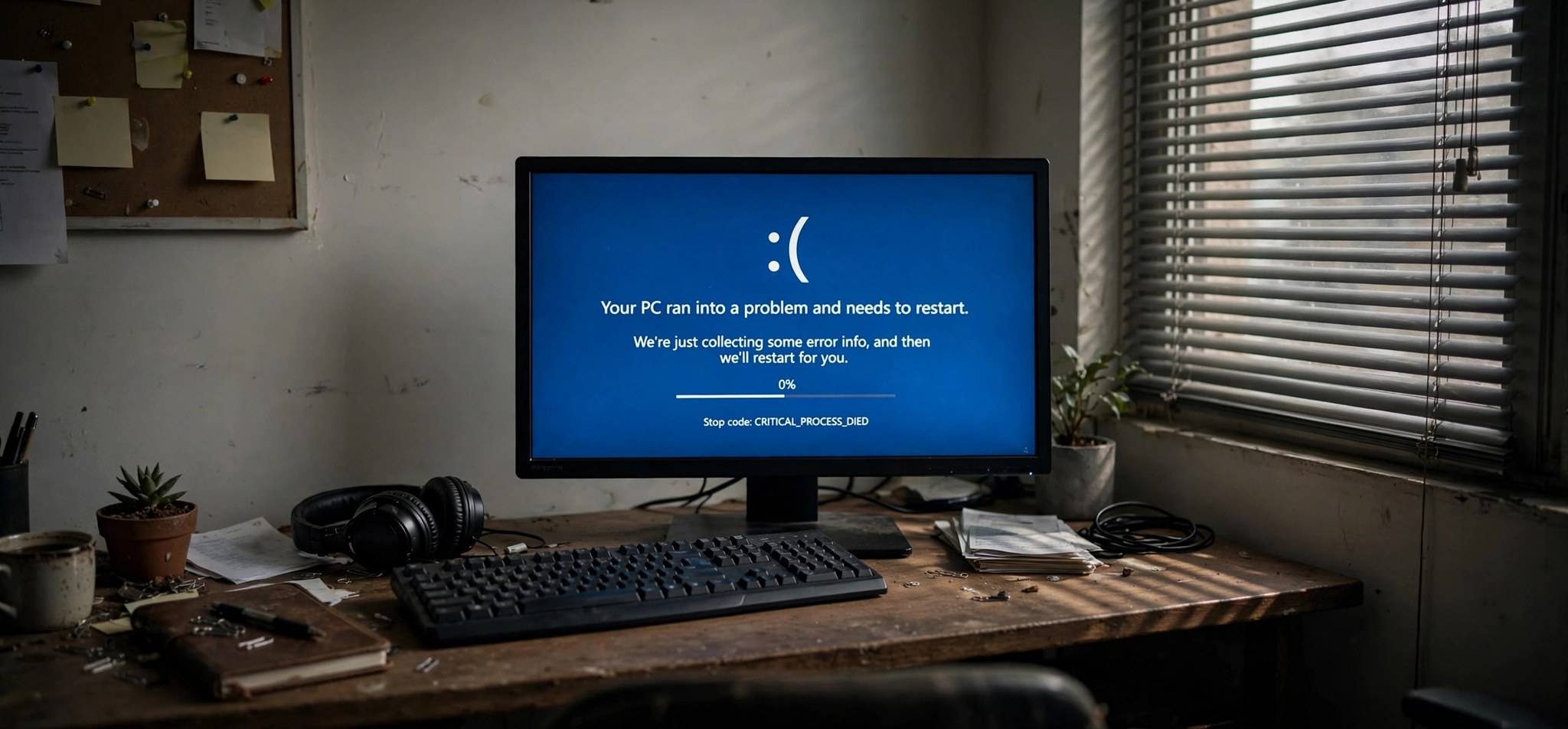
The 0xc000021a blue screen error is one of the more alarming stop codes in Windows. It appears with the message “Your PC ran into a problem and needs to restart” and the status code 0xC000021A, and it often traps your computer in a restart loop. The good news: this error has well-understood causes, and the 7 fixes below resolve it in most cases without losing your files.
Because this is a boot-level failure, most fixes run from the Windows Recovery Environment (WinRE). If your PC can still reach Windows occasionally, start with Fix 1; otherwise jump straight to the recovery-environment methods. For upgrade-related crashes, see also our 0xC1900101 Windows Upgrade error guide.
What Causes the 0xC000021A Error?
The 0xC000021A stop code means a critical user-mode subsystem failed: either Winlogon.exe (the process that handles sign-in) or Csrss.exe (the Client/Server Runtime Subsystem) terminated unexpectedly. Windows cannot run without these processes, so it halts with a blue screen. The most common trigger is a mismatched or corrupted system file — often winlogon.exe, csrss.exe, or a related DLL — damaged by a failed update, a bad driver installation, or disk errors.
Third-party software is another frequent culprit. Programs that hook into the logon process (some antivirus tools, credential managers, or system “optimizers”) can crash Winlogon at startup. The error also appears after incomplete Windows upgrades, where old and new system files end up mixed, and after registry damage from aggressive cleaning utilities. In rarer cases, failing RAM or a dying system drive corrupts the exact files Windows needs to sign you in.
How to Fix the 0xC000021A Error
Fix 1: Boot Into Safe Mode and Undo the Last Change
If a recent driver or program caused the crash, Safe Mode lets you remove it.
- Interrupt the boot process three times in a row (hold the power button during the Windows logo) to force the Automatic Repair screen.
- Choose Advanced options > Troubleshoot > Advanced options > Startup Settings, then click Restart.
- Press 4 or F4 for Safe Mode.
- Once inside, open Settings > Apps and uninstall anything installed just before the crashes began.
- Open Device Manager (right-click Start), find recently updated devices, right-click them and choose Properties > Driver > Roll Back Driver.
- Restart normally and check whether the blue screen is gone.
Fix 2: Run Startup Repair from WinRE
Startup Repair automatically fixes boot and logon-process problems.
- Force the recovery screen as in Fix 1, then choose Advanced options > Troubleshoot > Advanced options > Startup Repair.
- Select your Windows installation and sign in with an administrator account if asked.
- Let the repair run — it can take 10–30 minutes. Do not interrupt it.
- When it finishes, choose Continue to restart into Windows.
Fix 3: Run SFC and CHKDSK from the Recovery Command Prompt
This repairs the corrupted system files that most often trigger 0xC000021A.
- From the recovery screen, choose Advanced options > Troubleshoot > Advanced options > Command Prompt.
- First check the disk for errors: chkdsk C: /f /r (confirm with Y if prompted, and allow it to complete).
- Then run the System File Checker against the offline Windows install: sfc /scannow /offbootdir=C:\ /offwindir=C:\Windows
- If SFC reports it could not fix everything, run DISM: DISM /Image:C:\ /Cleanup-Image /RestoreHealth
- Type exit, choose Continue, and restart.
Fix 4: Disable Driver Signature Enforcement Temporarily
A bad signed-driver check can crash the logon process on some systems.
- Open Startup Settings from WinRE as in Fix 1 and restart.
- Press 7 or F7 to disable driver signature enforcement.
- If Windows boots, immediately update or remove the suspect driver via Device Manager.
- Restart normally afterward — the enforcement setting resets on its own.
Fix 5: Use System Restore to Roll Back
System Restore returns system files and the registry to an earlier working state without touching personal files.
- From WinRE, choose Advanced options > Troubleshoot > Advanced options > System Restore.
- Pick a restore point dated before the blue screens started.
- Confirm and let the restore complete, then restart.
- If no restore points exist, move on to the next fix.
Fix 6: Rebuild the BCD and Boot Files
Corrupted boot configuration data can cascade into logon-process failures.
- Open the recovery Command Prompt as in Fix 3.
- Run these commands one at a time, pressing Enter after each:
bootrec /fixmbr
bootrec /fixboot
bootrec /scanos
bootrec /rebuildbcd - If fixboot returns “Access is denied,” run diskpart, then list vol, identify the EFI partition, assign it a letter, exit diskpart, and run bcdboot C:\Windows /s X: /f UEFI (replace X with the assigned letter).
- Type exit and restart.
Fix 7: Reset Windows While Keeping Your Files
If nothing else works, a reset reinstalls Windows cleanly.
- From WinRE, choose Troubleshoot > Reset this PC.
- Select Keep my files.
- Choose Cloud download if you have a stable internet connection (it fetches a fresh Windows image), otherwise Local reinstall.
- Follow the prompts. Your personal files survive, but desktop programs will need reinstalling.
How to Prevent This Error
- Install drivers only from the hardware manufacturer’s site or Windows Update — never from random “driver updater” tools.
- Create a manual restore point before major updates: search Create a restore point in Start.
- Keep 20+ GB free on the system drive so updates never stall halfway.
- Avoid registry cleaners and aggressive “PC optimizer” apps; they are a classic cause of Winlogon damage.
- Run chkdsk C: /f occasionally if your drive is older than 4–5 years.
- Keep Windows Security real-time protection on to block malware that targets system files.
FAQs
What does 0xC000021A mean?
It means Winlogon.exe or Csrss.exe — two processes Windows cannot run without — crashed during startup. Common triggers are corrupted system files, bad drivers, failed updates, or software that interferes with the sign-in process.
Will I lose my files fixing 0xC000021A?
Not with Fixes 1–6; they only repair system files, drivers, and boot data. Even Fix 7’s “Keep my files” option preserves your documents, photos, and desktop. Still, if you can access the recovery Command Prompt, back up critical files to a USB drive first with xcopy or robocopy.
Why does 0xC000021A keep coming back after a fix?
A recurring crash usually means the root cause is still active: a driver Windows Update keeps reinstalling, a failing hard drive corrupting files again, or faulty RAM. Run your PC maker’s hardware diagnostics and check Settings > Windows Update > Update history for a driver update that coincides with the crashes.
Can faulty RAM cause 0xC000021A?
Yes, though it is less common than file corruption. Bad memory can corrupt winlogon.exe or csrss.exe in memory at boot. Run the built-in Windows Memory Diagnostic (search it in Start) if software fixes do not hold.
Is 0xC000021A related to Windows Update?
Often. Failed or partial updates are one of the top triggers, because they can leave mismatched system files behind. If the crash started right after an update, System Restore (Fix 5) is usually the fastest cure. For update-specific error codes, see our 0x80070005 fix guide.
Conclusion
The 0xC000021A blue screen is frightening, but it follows a predictable pattern: something damaged the files Windows needs to sign you in. Startup Repair, offline SFC, and System Restore resolve the large majority of cases. Work through the fixes in order, and keep the nuclear option — a file-preserving reset — for the end. Your files and your PC are both very likely recoverable.


