
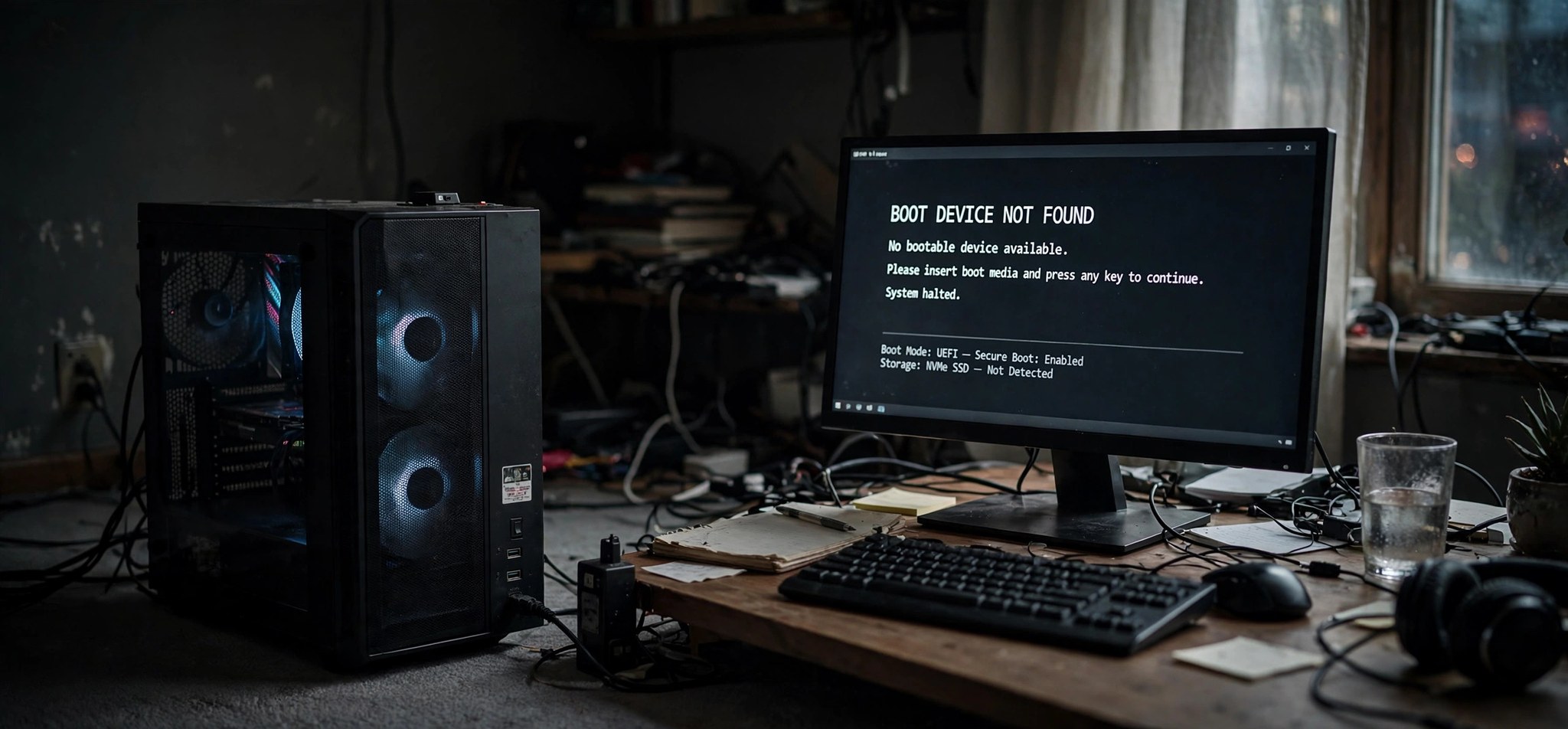
The 0xc00000e9 unexpected i/o error appears on a blue or black recovery screen with the message “An unexpected I/O error has occurred” and the status code 0xC00000E9. It means Windows tried to read from or write to a storage device and the operation failed at the hardware level. Because it strikes during boot, it can feel catastrophic — but the 6 fixes below resolve it in most cases, from loose cables to corrupted boot data.
This is a storage-layer failure, distinct from logon-process crashes like the 0xC000021A blue screen error — make sure you are fixing the right code before you start.
What Causes the 0xC00000E9 Error?
The 0xC00000E9 code means an input/output request to a disk or device failed unexpectedly. The most common cause is physical: a loose or failing SATA cable, a dying hard drive or SSD, or a USB drive that disconnected mid-boot. Windows starts loading, the storage device stops responding, and the boot process collapses with this error.
Software causes exist too. A corrupted boot configuration (BCD), damaged system files on the boot partition, or bad sectors in exactly the wrong place can all produce identical symptoms. The error also appears when the BIOS/UEFI boot order points at the wrong drive — for example after you removed a USB stick that the system was trying to boot from — or when a recent update left the boot files in an inconsistent state. Overclocked or unstable storage controllers are a rarer but real trigger.
How to Fix the 0xC00000E9 Error
Fix 1: Disconnect External Devices and Check the Boot Order
Stray USB drives are the simplest cause — rule them out first.
- Power off the PC completely and unplug every USB device: flash drives, external hard drives, printers, card readers, even USB hubs.
- Power on and enter your BIOS/UEFI setup (usually Del, F2, or F12 during the manufacturer’s logo).
- Open the Boot section and confirm your Windows drive (SSD/HDD) is first in the boot order — not a USB device or network boot.
- Save and exit. If Windows boots, one of the removed devices was the problem; reconnect them one at a time to identify it.
Fix 2: Check Internal Cables and Drive Health
On desktops, a reseat takes five minutes and fixes a surprising number of cases.
- Shut down, unplug the power cable, and open the case (skip this on laptops under warranty — use Fix 3 first).
- Reseat both ends of the SATA data cable and the SATA power cable on your boot drive. If you have a spare SATA cable, swap it in.
- For NVMe M.2 drives, remove the drive, blow out the slot gently, and reseat it firmly under its screw or latch.
- Close up, reconnect power, and boot. If the error persists, continue to the software fixes.
Fix 3: Run CHKDSK from the Recovery Environment
CHKDSK finds and repairs bad sectors and file-system errors on the boot drive.
- Force the Windows Recovery Environment: interrupt the boot three times (hold power during the Windows logo) until Automatic Repair appears.
- Choose Advanced options > Troubleshoot > Advanced options > Command Prompt.
- Run a thorough disk check: chkdsk C: /f /r — the /r flag locates bad sectors and recovers readable data. This can take an hour or more on large drives.
- When it completes, type exit and choose Continue to restart.
Fix 4: Run SFC and Startup Repair
If the disk is healthy, the system files themselves may be damaged.
- From WinRE, run Advanced options > Troubleshoot > Advanced options > Startup Repair first and let it complete.
- If Windows still will not boot, open the recovery Command Prompt again.
- Run the offline System File Checker: sfc /scannow /offbootdir=C:\ /offwindir=C:\Windows
- Follow with a DISM repair if needed: DISM /Image:C:\ /Cleanup-Image /RestoreHealth
- Type exit and restart.
Fix 5: Rebuild the Boot Configuration Data
A corrupted BCD produces exactly this error when the boot loader cannot find the OS.
- Open the recovery Command Prompt as in Fix 3.
- Run these commands in order, pressing Enter after each:
bootrec /fixmbr
bootrec /fixboot
bootrec /scanos
bootrec /rebuildbcd - When rebuildbcd finds your Windows installation, type Y to add it to the boot list.
- Type exit and restart the PC.
Fix 6: Test the Drive and Reinstall as a Last Resort
If every software fix fails, the drive itself is likely dying.
- Boot from a Windows installation USB, choose Repair your computer, and open Command Prompt to back up critical files with robocopy C:\Users\YourName D:\Backup /E (D: being your USB drive).
- Run your drive manufacturer’s diagnostic (most offer a bootable tool) or check SMART status — reallocated or pending sectors confirm hardware failure.
- Replace the failing drive, then reinstall Windows from the installation USB.
- Restore your files from the backup. Microsoft’s guidance on recovery options is at support.microsoft.com.
How to Prevent This Error
- Keep internal cables tidy and seated — vibration slowly loosens SATA connections over years.
- Do not unplug USB drives while the PC is booting or shutting down.
- Monitor drive health yearly with your SSD/HDD maker’s utility; replace drives showing SMART warnings.
- Keep reliable backups (File History or a disk image) so a dying drive is an inconvenience, not a disaster.
- Use a surge protector or UPS — power cuts during writes are a classic source of file-system corruption.
- Set the correct boot order in BIOS and leave it alone after hardware changes.
FAQs
What does 0xC00000E9 mean?
It means “an unexpected I/O error has occurred” — Windows issued a read or write request to a storage device and it failed. Causes range from loose cables and dying drives to corrupted boot files and wrong BIOS boot order.
Will I lose my files?
Not necessarily. Fixes 1–5 do not touch personal files. If the drive is physically failing (Fix 6), files may already be at risk — which is why backing up from the recovery Command Prompt comes before any reinstall decision.
Can a USB stick cause 0xC00000E9?
Yes. If the BIOS tries to boot from a USB drive that was removed, or a faulty external drive hangs during device enumeration, Windows can throw this exact error. That is why disconnecting all USB devices is Fix 1.
How do I know if my hard drive is dying?
Warning signs: the error returns after software fixes, CHKDSK finds new bad sectors on repeat runs, the drive makes clicking sounds, or SMART data shows reallocated sectors. Any one of these means replace the drive rather than fighting the symptoms.
Is 0xC00000E9 the same as 0xC00000E?
No, though they look similar. 0xC00000E means a required device is inaccessible (often a boot-device selection problem), while 0xC00000E9 means an I/O operation itself failed unexpectedly. The fixes overlap, but E9 leans more toward hardware and disk corruption.
Conclusion
The 0xC00000E9 unexpected I/O error is Windows telling you its conversation with your storage broke down. Start with the physical layer — USB devices, boot order, cables — then move to CHKDSK, SFC, and boot repair. Most cases resolve without data loss. Only when every software fix fails should you conclude the drive itself is done, and by then you will have a backup in hand.


