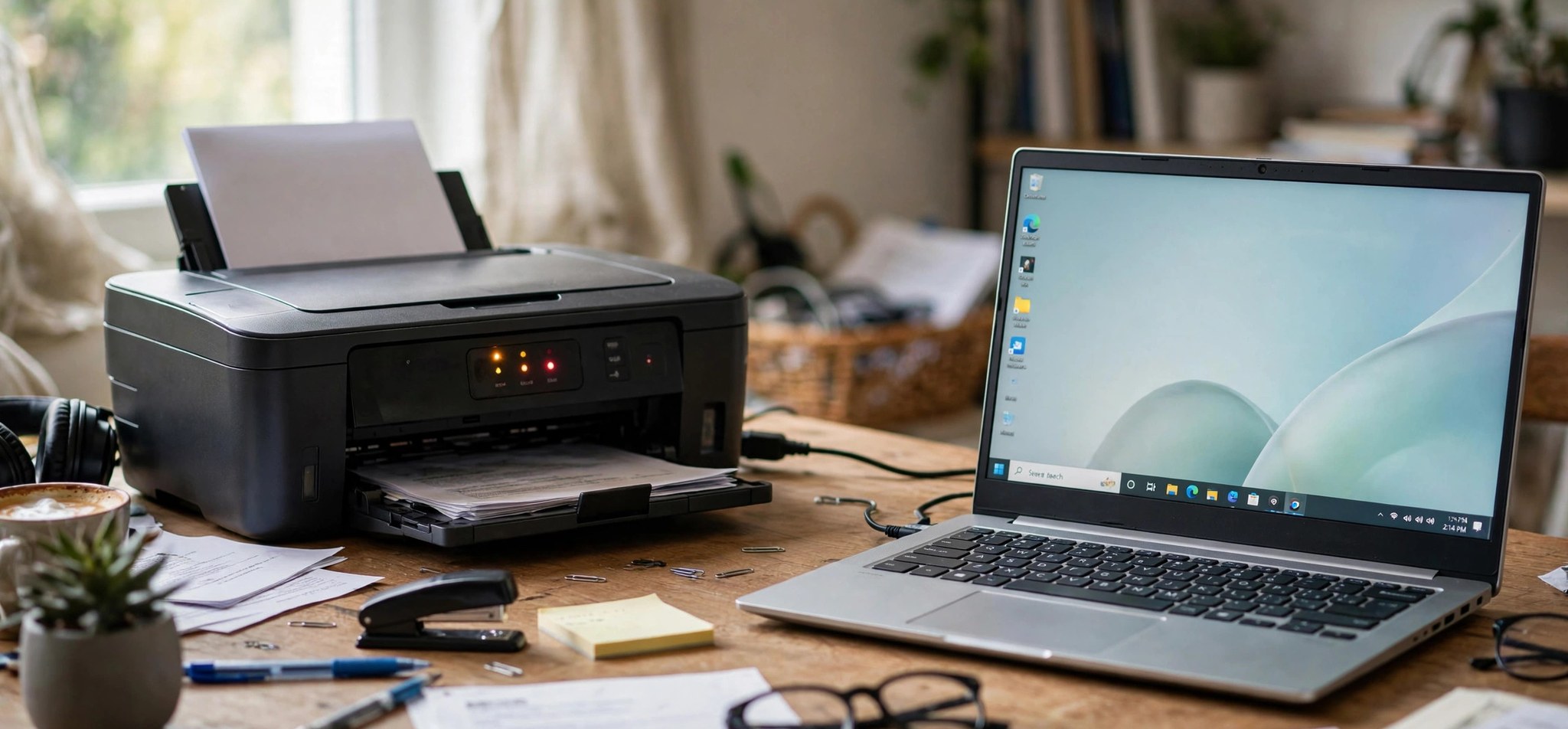
Seeing “Printer in error state” next to your printer in Windows 11 is maddeningly vague — Windows is telling you something is wrong without saying what. Print jobs pile up in the queue, nothing comes out of the printer, and the status refuses to clear on its own. The good news: this printer in error state on Windows 11 message almost always comes down to a short list of causes — a stuck print spooler, a driver problem, a paper jam, or a connection hiccup — and each has a straightforward fix. Work through these seven fixes in order. If your printer shows a specific error code instead, our printer error 0x0000011b guide covers that network-printer error.
What Causes the Printer in Error State Message?
Windows shows “error state” when the printing pipeline breaks down anywhere between your PC and the printed page. The most common breakage point is the Print Spooler service — the background service that queues your documents. When it crashes or jams on a corrupted print job, every printer on the system reports an error state.
The next most common causes are driver problems (outdated, corrupted, or wrong drivers, often after a Windows update), physical issues the printer cannot resolve itself (paper jams, empty trays, low ink, open covers), and connection problems — a USB cable that worked loose, a Wi-Fi printer that dropped off the network, or a printer on the wrong port. Permissions issues round out the list: if your user account lost rights to the printer, Windows flags it as an error.
How to Fix the Printer in Error State on Windows 11
Fix 1: Check the Physical Printer First
Before touching software, rule out the physical problems that Windows cannot fix for you. This takes two minutes and resolves a surprising share of error-state cases.
- Check the printer’s display panel or indicator lights for messages like paper jam, low ink/toner, paper out, or cover open.
- Open all access panels and remove any jammed paper — pull slowly in the direction of the paper path to avoid tearing.
- Make sure the paper tray has paper loaded correctly and the ink or toner cartridges are seated properly.
- Close all covers firmly, then turn the printer off, unplug it for 30 seconds, plug it back in, and turn it on.
- Check whether Windows still shows the error state before moving on.
Fix 2: Restart the Print Spooler Service
The Print Spooler manages every print job on your system. Restarting it clears transient failures and is the single most effective software fix for the error-state message.
- Press Win + R, type services.msc, and press Enter.
- Scroll down to Print Spooler in the services list.
- Right-click it and choose Restart. If it shows as stopped, choose Start instead.
- Double-click Print Spooler and confirm Startup type is set to Automatic.
- Try printing a test page.
Fix 3: Clear the Stuck Print Queue Manually
A single corrupted print job can wedge the entire queue and hold the printer in an error state indefinitely. Clearing the spooler files removes it.
- Press Win + R, type services.msc, press Enter, right-click Print Spooler, and choose Stop. Leave the Services window open.
- Press Win + R again, type %WINDIR%\system32\spool\printers, and press Enter.
- Delete everything inside that folder — these are only queued print jobs, not your documents.
- Return to the Services window, right-click Print Spooler, and choose Start.
- Send a fresh print job to test.
Fix 4: Run the Printer Troubleshooter
Windows 11 includes an automated printer troubleshooter that detects driver issues, spooler problems, and connectivity faults, and often fixes them without further input.
- Open Settings > System > Troubleshoot > Other troubleshooters.
- Find Printer in the list and click Run.
- Select your printer when prompted and follow the on-screen instructions.
- Apply any fixes the troubleshooter recommends, then test printing.
Fix 5: Update or Reinstall the Printer Driver
Drivers corrupted by a Windows update are a classic cause of persistent error states. A fresh driver from the manufacturer is more reliable than the generic one Windows assigns.
- Press Win + X and open Device Manager.
- Expand Print queues, right-click your printer, and choose Update driver > Search automatically for drivers.
- If that does not help, right-click the printer again and choose Uninstall device, then restart your PC.
- Download the latest full driver package for your exact model from the manufacturer’s support site (HP, Canon, Brother, Epson).
- Install it, re-add the printer if needed via Settings > Bluetooth & devices > Printers & scanners > Add device, and print a test page.
Fix 6: Check the Printer Port
A printer pointed at the wrong port — for example, still aimed at an old USB port number after being moved, or a network printer whose IP changed — will sit in an error state forever.
- Open Control Panel > Devices and Printers.
- Right-click your printer and choose Printer properties (not just Properties).
- Open the Ports tab and check which port is selected.
- For USB printers, make sure a USB port (like USB001) is checked. For network printers, the checked port should match the printer’s current IP address — print a network configuration page from the printer to confirm it.
- If the port is wrong, either tick the correct one or click Add Port to create it, then click Apply and test.
Fix 7: Set the Printer as Default and Check Permissions
Windows sometimes mishandles a printer that is not the default, and permission problems can silently block printing with a generic error state.
- Open Settings > Bluetooth & devices > Printers & scanners.
- Turn off “Let Windows manage my default printer” if it is enabled.
- Select your printer and click Set as default.
- Back in Control Panel > Devices and Printers, right-click the printer, choose Printer properties > Security tab, and confirm your user account has Print permission ticked under Allow.
- Restart your PC and test printing once more.
Microsoft’s official printer troubleshooting walkthrough: Run the printer troubleshooter.
How to Prevent This Error
- Keep your printer driver updated, especially right after major Windows updates.
- Do not turn the printer off mid-job — let print jobs finish or cancel them cleanly from the queue.
- Give network printers a static or reserved IP address so the port never goes stale.
- Keep the printer’s firmware updated via the manufacturer’s utility.
- Clear paper jams promptly and keep the paper path free of dust and debris.
- Restart the Print Spooler or your PC at the first sign of queue weirdness, before jobs pile up.
FAQs
What does “printer in error state” actually mean?
It is Windows’ generic way of saying the printing pipeline has failed somewhere — the spooler, the driver, the connection, or the printer hardware itself. Because it is generic, you diagnose it by elimination: physical check, spooler restart, queue clear, driver, port, in that order.
Why does my printer show error state but the printer looks fine?
Then the problem is almost certainly on the PC side: a crashed Print Spooler, a corrupted job wedged in the queue, a bad driver, or a wrong port. Fixes 2, 3, 5, and 6 address exactly these cases.
Will reinstalling the printer delete my settings?
Removing and re-adding the printer resets its Windows-side configuration (default status, preferences, port assignment), but it does not affect the printer’s own hardware settings. You will need to set it as default again afterwards.
Can a Windows update cause the error state?
Yes — updates frequently replace or break printer drivers, which is one of the most common triggers. If the error appeared right after an update, Fix 5 (fresh manufacturer driver) is the most likely solution.
How do I stop print jobs from getting stuck in the first place?
Print one job at a time for large documents, avoid closing your laptop lid mid-print, keep the driver current, and cancel failed jobs from the queue promptly instead of letting them accumulate behind a stuck one.
Conclusion
“Printer in error state” is frustrating precisely because it is vague — but the fix list is short and reliable. Check the hardware, restart the Print Spooler, clear the queue, and refresh the driver, and the status clears in the overwhelming majority of cases. Work through the seven fixes above in order and your printer will be back online.