
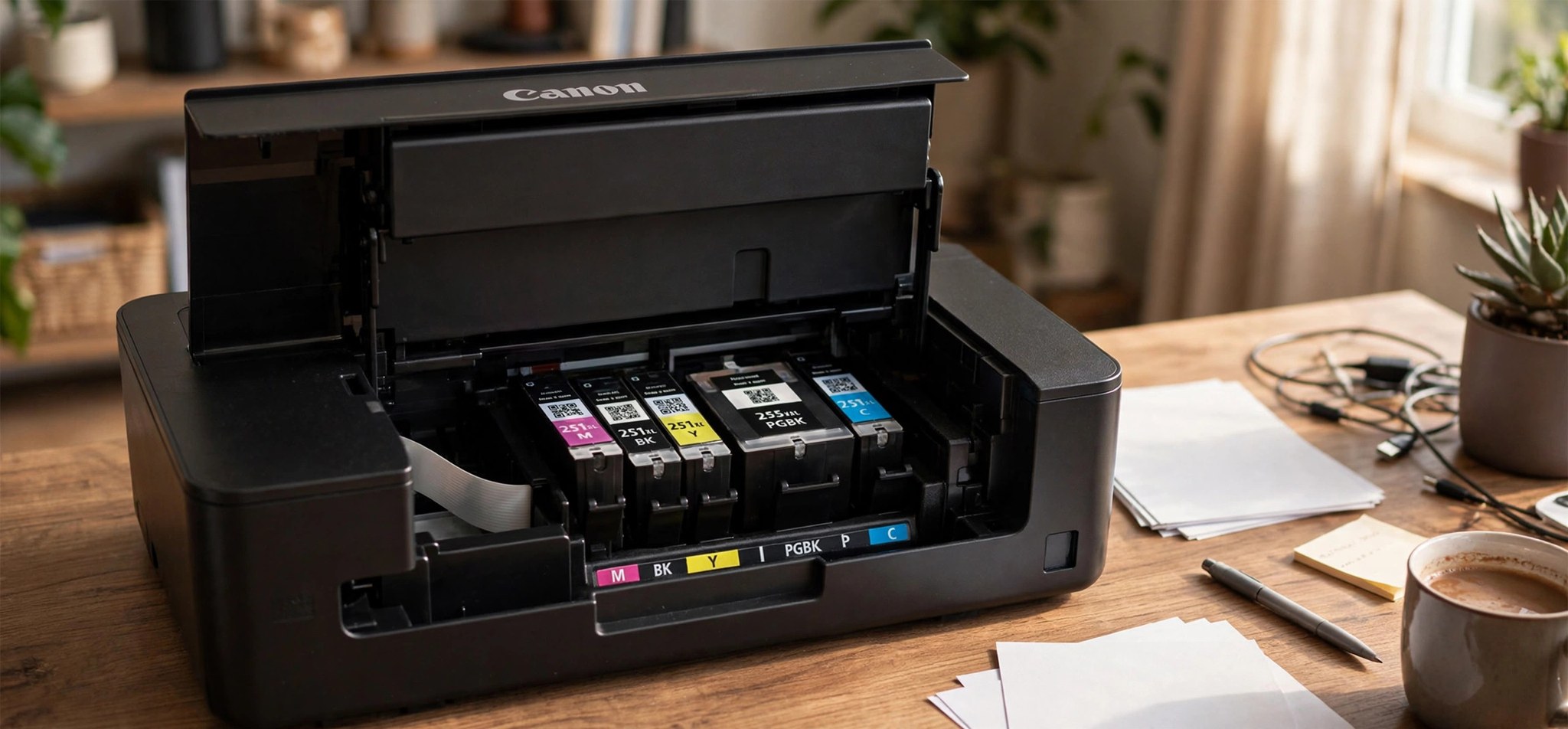
What Causes the Canon Printer Error 5100?
Canon printer error 5100, also shown as Support Code 5100, is a carriage error. It means the print head carriage — the assembly that slides the ink cartridges back and forth across the page — cannot move freely. When the printer powers on or starts a job, it runs a carriage homing check. If the carriage stalls, meets resistance, or reports an abnormal position, the printer halts and displays error 5100.
Canon documents several concrete causes. The most common is a physical obstruction: a scrap of paper, a foreign object, or leftover packing material blocking the carriage path. On new printers, people often miss a piece of protective tape or foam inside the machine. Dried ink buildup around the carriage rail can also create drag. Less often, the error comes from improperly seated ink cartridges, a dirty encoder strip (the transparent film the printer uses to track carriage position), or a genuinely failed carriage motor or logic board. That last category needs professional service, but the first three are fixable at home.
Power interruptions matter too. If the printer lost power mid-job, the carriage can stop mid-travel, and on the next startup the homing check fails. A simple power cycle resolves these cases. The fixes below go from the easiest reset to a careful physical inspection, so start at the top.
How to Fix Canon Printer Error 5100
Fix 1: Power Cycle the Printer
A hard power reset clears temporary carriage position errors and lets the printer re-run its homing check from scratch. This resolves error 5100 when the cause was a power blip or a one-time stall.
- With the printer powered on, press the power button to turn it off.
- Unplug the power cord from the back of the printer, not just the wall outlet.
- Wait at least 60 seconds so the internal capacitors fully discharge.
- Plug the power cord back in and press the power button.
- Wait for the printer to finish its startup routine and check whether error 5100 is gone.
Fix 2: Check for Obstructions and Packing Material
A piece of torn paper, a paperclip, or leftover packing foam in the carriage path is the single most common cause of support code 5100. A careful visual inspection finds it.
- Turn the printer off and unplug it for safety.
- Open the top cover or scanning unit to expose the ink cartridge area.
- Look along the full width of the carriage rail for scraps of paper, foreign objects, or pieces of protective tape and foam.
- Check the paper feed path and output slot as well; a jammed sheet behind the carriage can block it.
- Remove any obstructions gently with tweezers. Do not force the carriage by hand if it resists; try the power cycle again after clearing the path.
- Close the cover, plug the printer back in, and power it on.
If you recently unboxed the printer, double-check for packing material. Canon ships printers with orange tape and foam blocks that are easy to overlook inside the cartridge bay.
Fix 3: Reseat the Ink Cartridges
Cartridges that are not fully clicked into the print head can tilt the carriage or trigger its position sensor incorrectly. Reseating them takes a minute and rules this out.
- Open the cover so the carriage moves to the replacement position (on some models you open the cover while the printer is on).
- Remove each ink cartridge by pressing its release tab and lifting it out.
- Inspect the cartridge contacts and the print head contacts for dried ink or debris, and wipe them gently with a dry, lint-free cloth.
- Reinsert each cartridge firmly until it clicks into place.
- Close the cover and let the printer complete its alignment or cleaning cycle.
Fix 4: Clean the Encoder Strip and Carriage Rail
The encoder strip is a thin transparent film running the width of the printer that the carriage uses to track its position. Ink mist or dust on it confuses the sensor and can trigger error 5100. The metal carriage rail can also get sticky with dried ink.
- Unplug the printer and open the cover to access the carriage area.
- Locate the clear plastic strip running horizontally behind or above the carriage.
- Dampen a lint-free cloth or cotton swab with a small amount of distilled water. Wring it so it is barely damp.
- Gently wipe the encoder strip from one end to the other. Do not pull hard; the strip is delicate and creasing it will cause worse errors.
- Wipe the metal carriage rail lightly to remove dried ink, then let everything dry for a few minutes.
- Close the cover, plug in the printer, and power it on.
Fix 5: Reset the Ink Absorber Counter and Consider Service
On older Canon printers with heavy use, error 5100 can accompany an ink absorber warning. The absorber pads soak up waste ink during cleaning cycles, and Canon’s firmware tracks their estimated saturation. This fix is a note of caution rather than a DIY step.
- Check the printer’s status monitor or LCD for any accompanying message about the ink absorber being full or nearly full.
- Do not attempt service-mode resets unless you are comfortable with the risk: resetting the counter without replacing or cleaning the absorber pads can lead to ink overflow inside the printer.
- If the pads are genuinely saturated, the correct repair is replacing or professionally cleaning them, then resetting the counter.
- If none of the fixes above clear error 5100, the carriage motor, sensor, or logic board may have failed. Contact Canon support or an authorized service center rather than forcing the mechanism.
For official guidance, Canon’s support site publishes model-specific troubleshooting for support code 5100. Check your exact model’s manual before opening anything beyond the covers.
How to Prevent Canon Error 5100
- Remove all packing tape and foam when unboxing a new printer, and check the cartridge bay twice.
- Keep the printer on a stable surface and avoid moving it while it is powered on.
- Use a surge protector so power blips do not strand the carriage mid-travel.
- Run the printer’s automatic print head cleaning from the maintenance menu instead of letting ink dry on the rail.
- Clear paper jams carefully and completely; torn scraps left inside cause repeat carriage errors.
- Turn the printer off with its power button so the carriage parks correctly, rather than unplugging it while idle.
FAQs
What does support code 5100 mean on a Canon printer?
It is a carriage error: the assembly that carries the ink cartridges cannot move or position itself correctly. The usual culprits are obstructions, packing material, poorly seated cartridges, or a dirty encoder strip.
Can I fix error 5100 without opening the printer?
Sometimes. A full power cycle (unplugged for 60 seconds) clears transient carriage faults. If the error returns immediately, you will need to open the cover and inspect the carriage path.
Is it safe to move the carriage by hand?
Generally avoid it. Forcing a stuck carriage can damage the belt or encoder strip. Clear visible obstructions, then let the printer’s own startup routine move the carriage.
Why did error 5100 appear right after I replaced ink?
A cartridge probably is not seated fully, or the protective tape was not removed from a new cartridge. Reseat all cartridges until each clicks.
Does error 5100 mean my printer is dead?
Not usually. Most cases are obstructions or seating issues. If every fix fails and the carriage will not move at all even with the power off and path clear, the motor or board may need professional service.
Conclusion
Canon printer error 5100 is the printer telling you its carriage cannot travel freely. A power cycle, a careful check for obstructions and packing material, reseating the cartridges, and cleaning the encoder strip resolve the large majority of cases. When those fail and the mechanism itself is at fault, Canon’s service network is the right next step rather than a deeper DIY repair.
Related Fixes
For more printer troubleshooting, read our guides on Printer Error 0x0000007E and HP Printer Offline in Windows 11 over WiFi.


