
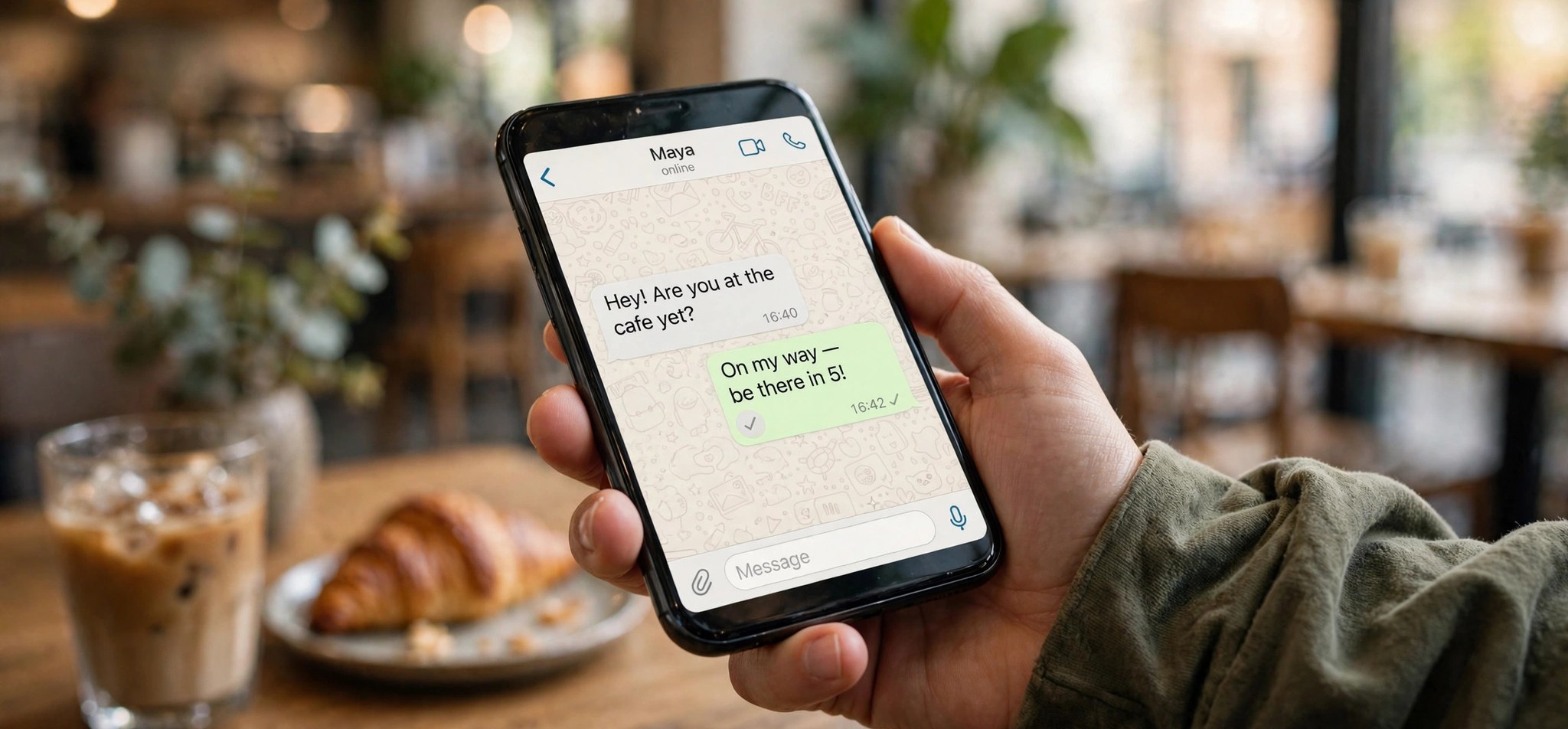
What Causes WhatsApp Messages Not to Send?
When WhatsApp messages will not send, you usually see a single gray tick or a clock icon that never advances. A single gray tick means the message left your phone but has not reached WhatsApp’s servers; a clock icon means it has not even left your device. Both point to a delivery failure somewhere between your phone and WhatsApp’s infrastructure.
The most common cause is simply your connection: weak WiFi, mobile data turned off, airplane mode left on, or a network that blocks WhatsApp’s traffic (some office and school networks do). Beyond that, an outdated app version can fail against WhatsApp’s current servers, an incorrect date and time breaks the secure connection handshake, and a full phone storage prevents the app from queuing outgoing messages. On the account side, your number may have been blocked by the recipient (messages to someone who blocked you never deliver), or WhatsApp may have restricted your account after unusual activity. Background data restrictions and aggressive battery savers can also silently stop WhatsApp from reaching the network.
The fixes below move from connection checks to app and account checks. Start at the top; most sending failures are fixed within the first three.
How to Fix WhatsApp Not Sending Messages
Fix 1: Check Your Internet Connection
WhatsApp needs a working data connection. Verify the basics before touching the app.
- Open your phone’s browser and load a webpage to confirm the internet actually works.
- If you are on WiFi, check the signal strength; move closer to the router or toggle WiFi off and on.
- If you are on mobile data, confirm mobile data is enabled and you have an active data allowance.
- Try switching between WiFi and mobile data to see if one path works.
- Restart your router if WiFi is connected but nothing loads.
Fix 2: Toggle Airplane Mode Off and On
A stuck radio state can leave the phone thinking it is online while no data flows. Cycling airplane mode forces all radios to reconnect cleanly.
- Open Quick Settings (swipe down from the top on Android, or open Control Center on iPhone).
- Turn Airplane Mode on and wait 10 seconds.
- Turn Airplane Mode off and wait for the signal and data icons to return.
- Open WhatsApp and check whether the stuck messages send.
Fix 3: Force Stop and Restart WhatsApp
A hung app process can stop the send queue even with a good connection. A clean restart gets it moving again.
- On Android, go to Settings, Apps, WhatsApp, and tap Force Stop, then reopen the app.
- On iPhone, swipe up to the app switcher and swipe WhatsApp away, then reopen it.
- Watch the pending messages; they should attempt to send within seconds.
Fix 4: Update WhatsApp
Old app versions can lose compatibility with WhatsApp’s servers, and updates also fix known sending bugs.
- Open the Google Play Store or Apple App Store.
- Search for WhatsApp and install any available update.
- Restart your phone after the update for good measure.
- Open WhatsApp and retry sending.
Fix 5: Set Date and Time to Automatic
WhatsApp’s encrypted connection requires your device clock to roughly match server time. A wrong clock breaks the handshake and blocks sending.
- Open your phone’s Settings and go to Date & Time (on iPhone: General, then Date & Time).
- Enable automatic date and time (and automatic time zone).
- Confirm the displayed time is correct, then reopen WhatsApp and try again.
Fix 6: Free Up Phone Storage
When storage is critically low, WhatsApp cannot write outgoing messages to its queue. Clearing space unblocks it.
- Check available storage in Settings, Storage.
- Delete unneeded photos, videos, downloads, or unused apps.
- On Android, you can also clear WhatsApp’s cache via Settings, Apps, WhatsApp, Storage, Clear Cache (this does not delete chats).
- Aim for at least 1 GB of free space, then retry sending.
Fix 7: Allow Background Data and Disable Battery Restrictions
Battery savers and data restrictions can cut WhatsApp off from the network the moment it leaves the foreground.
- On Android, go to Settings, Apps, WhatsApp, Mobile data, and enable Allow background data usage. Then go to Battery and set it to Unrestricted or Optimized rather than Restricted.
- On iPhone, go to Settings, WhatsApp, and confirm Background App Refresh is on.
- Turn off any system-wide data saver or ultra battery mode temporarily and test sending.
Fix 8: Check Whether You Have Been Blocked
If messages to one specific contact never deliver while everyone else works, that contact may have blocked your number. Messages sent to someone who blocked you show a single tick forever.
- Send a test message to a different contact or a group. If it delivers, the problem is specific to the first contact.
- Check the contact’s profile: no profile photo, no “last seen,” and calls that never connect are consistent with being blocked, though none proves it alone.
- If you believe it is a mistake, reach out through another channel. There is no in-app fix for being blocked.
Fix 9: Reinstall WhatsApp as a Last Resort
A corrupted installation can break sending in ways settings cannot fix. Reinstalling gives you a clean copy; your chats are safe if you back up first.
- Back up your chats: WhatsApp, Settings, Chats, Chat backup, then Back Up Now.
- Uninstall WhatsApp from your phone.
- Reinstall it from the official Play Store or App Store.
- Verify your number and restore the backup when prompted.
- Test sending a message.
WhatsApp documents connection troubleshooting in its official help center if you need model-specific steps.
How to Prevent WhatsApp Sending Problems
- Keep WhatsApp updated; enable auto-updates in your app store.
- Keep at least 1–2 GB of free phone storage at all times.
- Leave date and time on automatic permanently.
- Do not restrict WhatsApp’s background data or battery usage.
- Back up chats regularly so a reinstall is painless when needed.
- On restricted networks (office, campus), ask the administrator whether messaging apps are allowed before assuming the app is broken.
FAQs
What does one gray tick mean on WhatsApp?
One gray tick means the message was sent from your phone but has not reached WhatsApp’s servers yet. Two gray ticks mean it reached the server; two blue ticks mean the recipient read it. A message stuck on one tick points to your connection or the app, not the recipient.
Why do my messages send on WiFi but not mobile data?
Your mobile data may be off, restricted for WhatsApp, or out of allowance. Check the app’s mobile data permission and your data balance, and confirm data saver is not blocking it.
Can WhatsApp ban my number from sending?
Yes. WhatsApp restricts accounts that trigger spam detection, such as bulk messaging or using unofficial app versions. A restricted account shows an on-screen notice; the fix is to appeal through the app and stop the flagged behavior.
Will clearing WhatsApp’s cache delete my chats?
No. Clearing the cache on Android removes temporary files only. Your chats remain. Do not confuse it with Clear Data, which wipes the app’s local database.
Why does WhatsApp fail after I changed phones?
The new phone may have restored an old backup over a mismatched app version, or the number verification did not complete. Update the app, verify your number, and re-run chat backup on the old device if messages are missing.
Conclusion
WhatsApp messages that will not send are almost always a connection, clock, storage, or app-version issue — all fixable in minutes. Work through the connection checks first, then the app settings, and consider the blocked-contact and account-restriction possibilities when only one conversation is affected. Keep the app updated and storage free, and sending stays reliable.
Related Fixes
More messaging help: WhatsApp Backup Stuck? 8 Fixes and Instagram “Couldn’t Refresh Feed”: 8 Fixes.


