
What Causes Snapchat Support Code SS06?
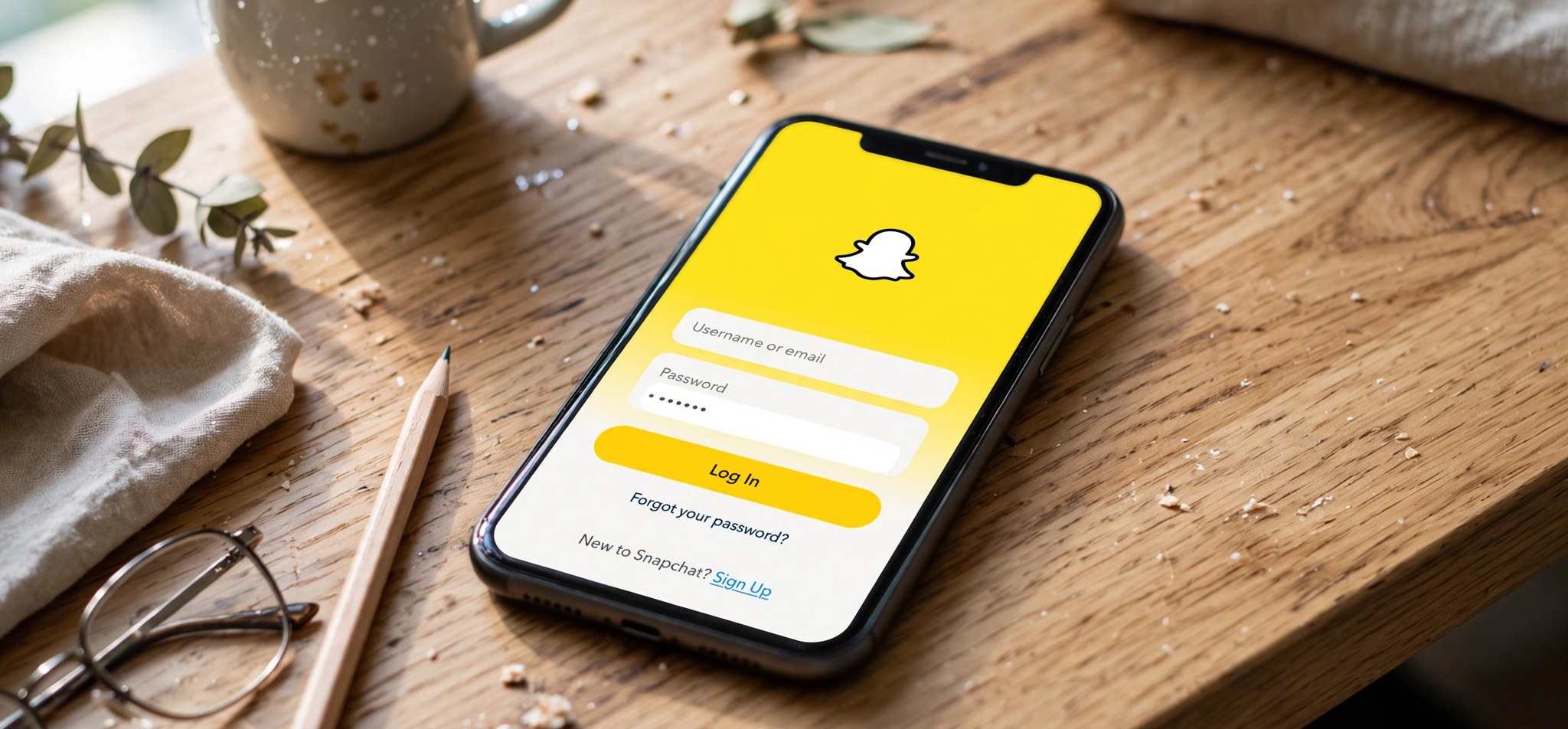
Snapchat support code SS06 appears when you try to log in and Snapchat refuses the attempt. It is a login and device flag: Snapchat’s systems have decided the sign-in looks risky and block it with this code instead of letting you through. You will typically see a message telling you to contact support, with SS06 as the reference code.
To be direct: Snapchat does not publish a detailed public definition of every support code, and SS06 falls in that category. What is known from user reports and Snapchat’s own help material is that it relates to the account or the device being flagged. Common triggers include too many failed login attempts in a short time, logging in from a new or unfamiliar device, using a VPN or modified app version, or activity that tripped Snapchat’s automated security checks. It can also appear after a password change or when the app’s stored session data becomes corrupted.
The important thing is that SS06 is a security response, not a random bug. The fixes below are the standard account and device recovery steps: they address the plausible causes one by one, from the harmless (outdated app) to the account-level (unlock request). Do not use third-party “unlocker” tools or modified Snapchat clients; those make the flag worse and can get the account permanently locked.
How to Fix Snapchat Support Code SS06
Fix 1: Wait and Try Again Later
If SS06 was triggered by too many login attempts, Snapchat applies a temporary cool-down. Hammering the login button extends it.
- Stop attempting to log in for at least 24 hours.
- Do not try from other devices or reinstall the app during the wait; new attempts can reset the timer.
- After 24 hours, open the official Snapchat app and try logging in once with the correct username and password.
Fix 2: Update the Snapchat App
Outdated app versions can fail Snapchat’s device checks. Running the latest release removes that variable.
- Open the Google Play Store or Apple App Store.
- Search for Snapchat and check for an update.
- Install the update if one is available, then restart your phone.
- Try logging in again.
Fix 3: Clear the App Cache
Corrupted cached session data can cause repeated login failures. Clearing the cache removes it without deleting your memories or account data.
- On Android, go to Settings, then Apps, then Snapchat, then Storage, and tap Clear Cache. Do not tap Clear Data unless you are prepared to re-log in everywhere.
- On iPhone, there is no per-app cache button; offload the app via Settings, General, iPhone Storage, Snapchat, Offload App, then reinstall it from the App Store.
- Open Snapchat and attempt to log in.
Fix 4: Check Date, Time, and Connection
Login security checks fail when your device clock is wrong or your connection looks suspicious. Both are quick to verify.
- Go to your phone’s date and time settings and enable automatic date and time.
- Turn off any VPN or proxy; Snapchat flags logins from unexpected locations.
- Switch between WiFi and mobile data to rule out a network-level block.
- Try logging in again on the corrected connection.
Fix 5: Reinstall the App Cleanly
A fresh install clears all local state that a cache clear might miss. Your account data, friends, and memories are stored server-side and survive a reinstall.
- Uninstall Snapchat from your device.
- Restart the phone.
- Install Snapchat fresh from the official Play Store or App Store only.
- Open it and log in with your username and password. Avoid third-party or modified versions entirely.
Fix 6: Unlock Your Account via Snapchat’s Website
If your account itself is locked, no device-side fix will help. Snapchat provides an official unlock page for exactly this situation.
- On a browser, go to accounts.snapchat.com and log in with your Snapchat credentials.
- Look for the unlock or account status option and follow the prompts to request an unlock.
- If the page says the account is temporarily locked, wait the stated period and try the unlock again.
- After a successful unlock, wait a few minutes, then log in through the app.
Snapchat’s help center documents this process under locked accounts at Snapchat Support. If the unlock option does not appear, the lock may still be in its waiting period.
Fix 7: Contact Snapchat Support
When SS06 persists after the cool-down, a clean reinstall, and the unlock page, the flag needs a human review. Contact support directly with the code.
- Go to Snapchat’s support site and choose the “I can’t access my account” path.
- Describe the issue and include the exact code SS06, your username, and the device you use.
- Submit from the email address linked to the account if possible.
- Wait for their response and follow their instructions; do not create a new account to evade the flag, as that violates their terms.
How to Prevent Support Code SS06
- Log in from your own device and avoid sharing your account across many phones.
- Do not use VPNs, emulators, or modified Snapchat clients.
- Keep the app updated to the latest official release.
- Use a strong, unique password and enable two-factor authentication so nobody else triggers failed logins on your account.
- Do not guess your password repeatedly; use the “Forgot password” reset flow after two failed attempts.
- Keep your account email and phone number current so recovery options work.
FAQs
What does Snapchat support code SS06 mean?
It is a login/device security flag. Snapchat blocked the sign-in attempt because something about the account or device looked risky. Snapchat has not published a detailed public definition, so the practical meaning is: the login was refused for security reasons.
How long does SS06 last?
It depends on the trigger. Attempt-based cool-downs often clear within 24 hours. Account-level locks last until unlocked through accounts.snapchat.com or reviewed by support.
Will reinstalling Snapchat delete my memories?
No. Memories, friends, and chats are stored on Snapchat’s servers and tied to your account. A reinstall only removes local app data, and everything returns when you log back in.
Can I just make a new account instead?
Creating a new account to bypass a lock violates Snapchat’s terms and risks the new account being flagged too. Recover the original account through the unlock page or support.
Are “SS06 unlocker” tools safe?
No. Third-party unlock tools are scams or malware, and using them can turn a temporary flag into a permanent ban. Only use Snapchat’s official unlock page and support channels.
Does SS06 mean my account is permanently banned?
Not necessarily. SS06 covers temporary login flags as well as longer locks. If the unlock page offers an unlock option or the error clears after the cool-down, the account is recoverable. A permanent ban comes with an explicit notice stating the account was permanently locked.
Conclusion
Support code SS06 is Snapchat’s way of saying a login looked suspicious, and the fix is the standard recovery path: wait out the cool-down, update and clean the app, fix your clock and connection, try the official unlock page, and contact support if needed. Stay on the official app, keep your credentials secure, and you reduce the chance of seeing the code again.
Related Fixes
More app troubleshooting: Snapchat Camera Black Screen: 7 Fixes and Instagram “Couldn’t Refresh Feed”: 8 Fixes.


